Receive store events with webhooks
In this article we'll show you how to set up webhooks so your store notifies your own systems (an ERP, a CRM, an invoicing system) every time a sale is recorded.
When an event you subscribed to happens, Publica.la sends a signed POST request with the data in JSON format to the URL you specify. Webhooks are available for all stores and replace the previous sale webhook, with several advantages: you can have up to 10 destinations, each with its own key and its own events, and every notification includes a key that helps you avoid processing it twice.
Before you start
- Only store administrators can manage webhooks. Plan administrators can't access this section.
- Your store can have up to 10 endpoints. An endpoint is each URL in your system that receives the notifications.
- The URL must be public: use
httporhttps, port 80 or 443, and an address that isn't internal. We don't follow redirects. We recommendhttpsso the data travels encrypted.
Available events
| Event | When it's sent |
|---|---|
Order paid (order.paid) | Once per order, when its first approved sale payment is recorded. It isn't sent for renewals or shipping charges. |
Charge paid (charge.paid) | Each time a charge is approved in the payment gateway: the first purchase, every subscription renewal, charges covered by a 100% coupon, Publica One redemptions and shipping-only charges. |
A new purchase generates both events, and they can arrive in any order. To tell whether a charge is a renewal, check the charge.recurring_cycle field of the Charge paid event: 1 is the first charge of a subscription, a number greater than 1 is a renewal and null is a one-time purchase.
Create an endpoint
1. Go to the Control Panel and open Settings > Webhooks.
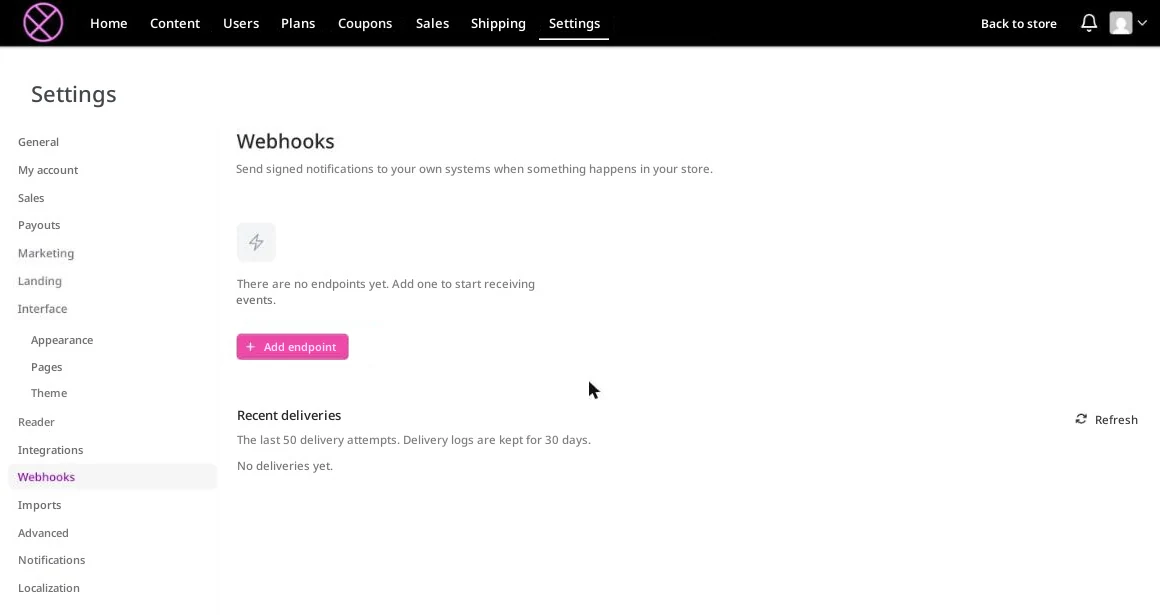
2. Click Add endpoint and fill in the details:
- Name: optional. It helps you tell one endpoint from another.
- URL: the address in your system that will receive a
POSTfor each event. - Events: check Order paid, Charge paid or both.
- Active: leave it on to start receiving notifications. If you turn it off, the endpoint is paused.
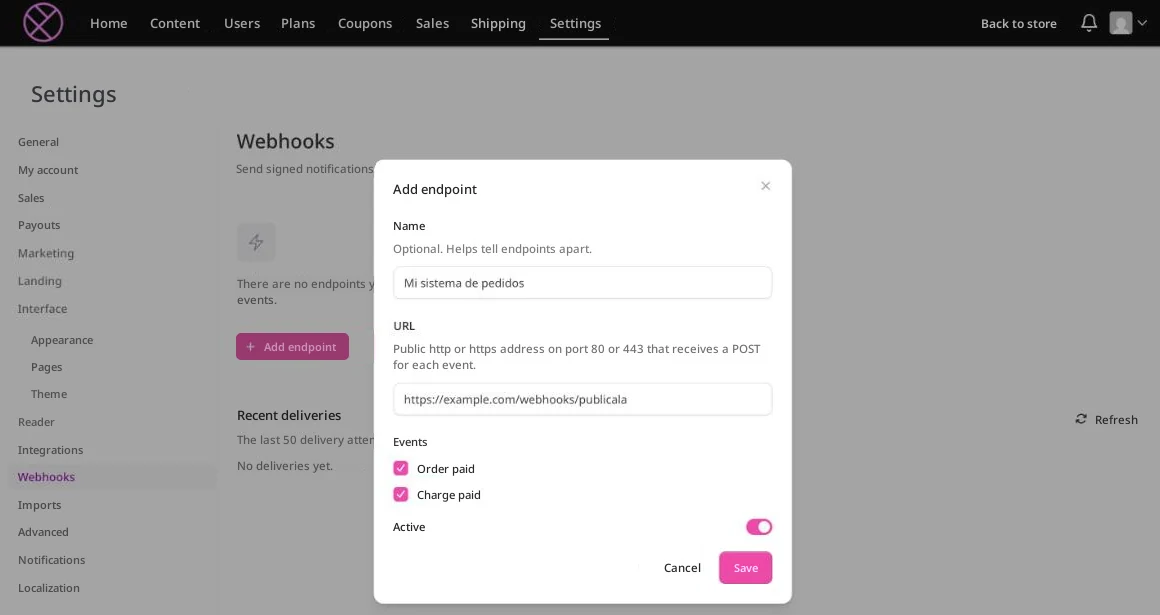
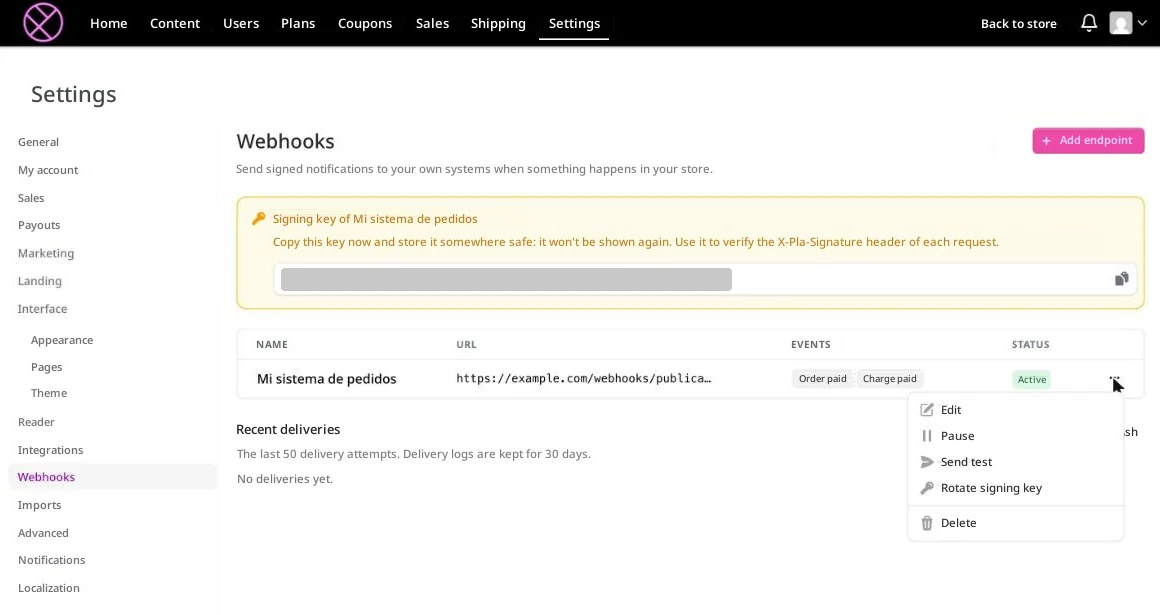
3. Click Save. You'll see the "Endpoint created" notice and a box with the endpoint's signing key, a 64-character code you'll use to check that the notifications come from Publica.la.
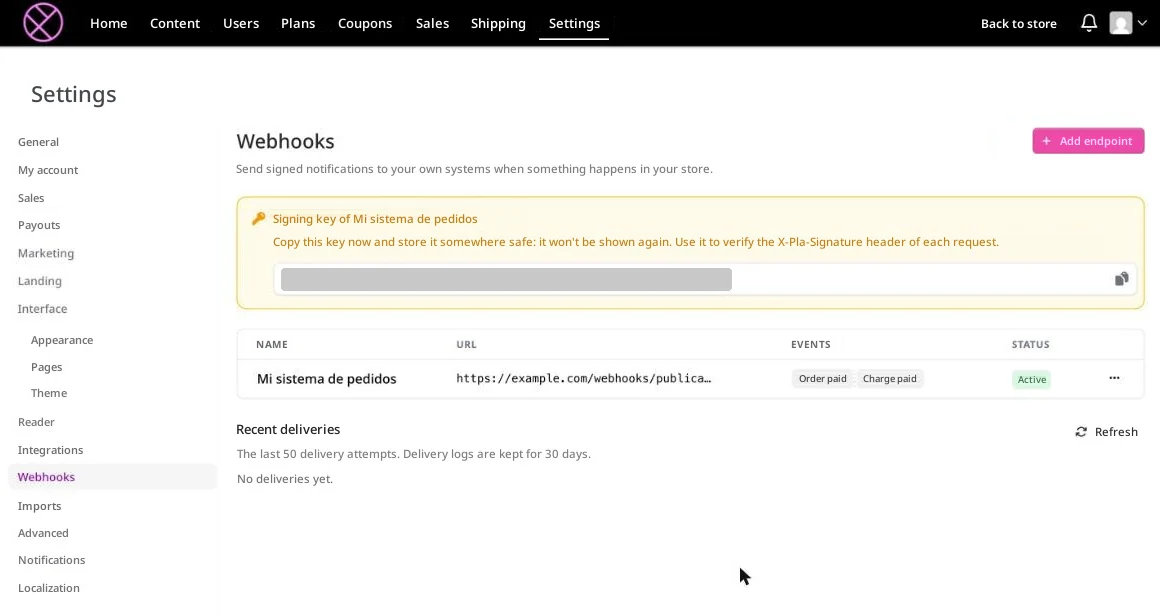
Send a test
To check that your system receives the notifications, open the endpoint's menu and click Send test. We send an example of the first event the endpoint is subscribed to, with the real headers and signature but with fictitious data. You'll see the "Test event queued" notice and, a few moments later, the attempt appears in Recent deliveries (click Refresh).
- You can send up to 5 tests per minute per endpoint. If you go over the limit, the panel tells you how many seconds to wait.
- The test is attempted only once, it's sent even if the endpoint is paused or disabled, and it doesn't count toward automatic disabling.
- Its idempotency key starts with
test:, so you can tell it apart from a real notification.
Check recent deliveries
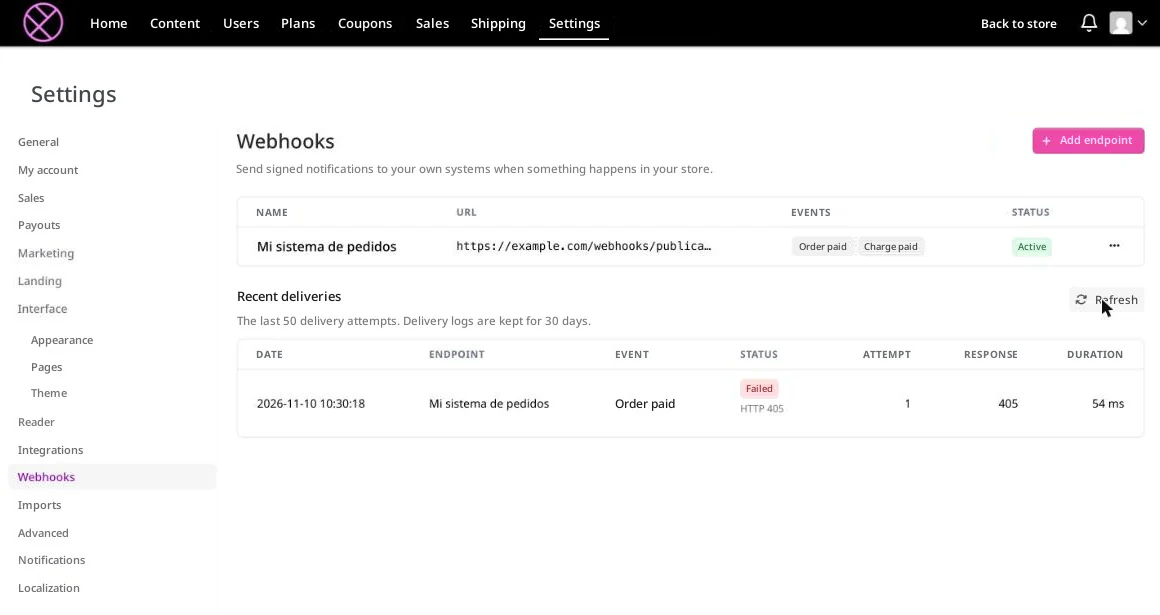
Below the list of endpoints, the Recent deliveries section shows the last 50 delivery attempts, kept for 30 days. Each attempt shows the date, the endpoint, the event, the status, the attempt number, the response code and the duration. The statuses are:
- Delivered: your system responded with a
2xxcode. - Failed: the attempt failed and will be retried while attempts remain.
- Skipped: it wasn't sent because the endpoint was paused, disabled or deleted, or because the event had already reached that endpoint.
Manage your endpoints
From each endpoint's menu you can:
- Edit: change the name, the URL or the events. If you change the URL, the failure count is reset and a disabled endpoint is re-enabled.
- Pause / Resume: stop sending notifications and start sending them again. Events that happen while the endpoint is paused are discarded, not saved to be sent later.
- Rotate signing key: generate a new key. The previous one stops working immediately, so update your system right before or right after.
- Re-enable: on a disabled endpoint, the panel shows the last error and lets you enable it again.
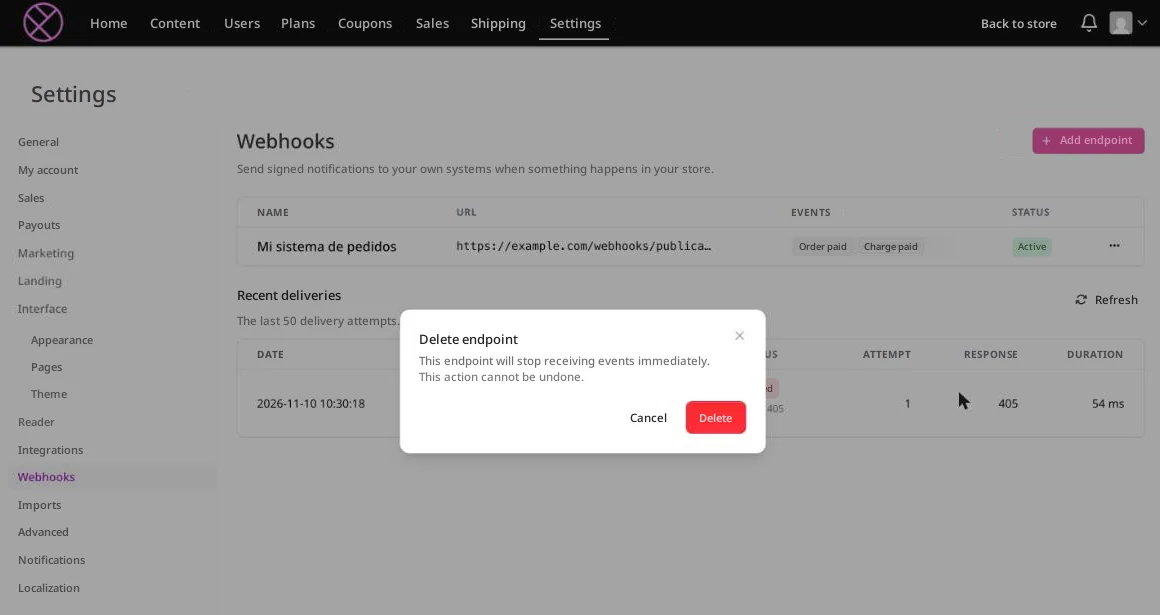
- Delete: remove the endpoint. We ask you to confirm because it's immediate and can't be undone: the endpoint stops receiving events and its deliveries are no longer shown.
What your system receives
Each notification arrives as a POST with a JSON body and these headers:
| Header | Content |
|---|---|
X-Pla-Signature | The signature: t=<timestamp>,v1=<HMAC-SHA256 signature>. |
X-Pla-Event | The event type, for example order.paid. |
X-Pla-Delivery | The delivery identifier. |
X-Pla-Idempotency-Key | The key of the announced fact, for example order.paid:order:1001. |
Some recommendations for your technical team:
- Verify the signature with the signing key before processing the notification, and reject those whose timestamp is more than 5 minutes off.
- Respond with a
2xxcode within 10 seconds. Any other response counts as a failure. - Avoid duplicates with
X-Pla-Idempotency-Key: you can receive the same notification more than once, and the order between events isn't guaranteed.
The signature details, the fields of each event and a verification example are in the webhooks technical documentation.
Retries and automatic disabling
If your system doesn't respond with a 2xx code, we retry the delivery up to 12 times over about 70 hours, with increasingly longer waits (1 minute, 5 minutes, 15 minutes, 1 hour, 3 hours, 6 hours and then 12 hours).
An endpoint is automatically disabled when its last 5 deliveries used up all their attempts and it had no successful delivery in the last 72 hours. While it's disabled it receives nothing: new events are discarded and we don't send any email notice. The panel shows it as Disabled until you re-enable it.
Migrate from the previous sale webhook
The previous sale webhook (the one set up in Settings > Integrations) still works for now, but it's deprecated. You can have both active at the same time: create your new endpoints, check that your system processes them correctly and only then turn off the previous one. Keep these differences in mind:
- The previous webhook sent one request for each paid product. Now you receive a single Charge paid event per charge, with all the payments in
data.payments. - The signature is no longer a JWT token: it's now an HMAC-SHA256 signature of the body, in the
X-Pla-Signatureheader. - Renewals, shipping charges and Publica One redemptions arrive as Charge paid events.
The complete guide is in the technical documentation.
Frequently asked questions
Can I send each event to a different system? Yes. Create one endpoint per system (up to 10) and check only the events each one needs. Each endpoint has its own signing key.
I lost the signing key. Can I see it again? No, it's only shown when you create the endpoint and when you rotate it. Use Rotate signing key to generate a new one and update it in your system.
My endpoint stopped receiving notifications. What should I check? Open Settings > Webhooks and check whether the endpoint is paused or Disabled. If it is, fix the problem in your system, use Send test and click Re-enable. Recent deliveries shows the last error.
How can I test without building anything? You can use a request-catching service such as webhook.site, which gives you a temporary public URL. Keep in mind that anyone with that URL can see the data that arrives, including real sales data: delete the endpoint when you finish.
When I save, the URL is rejected. Why?
The URL must be public, start with http:// or https:// and use port 80 or 443. Private or local addresses aren't accepted.
The test fails with a 3xx code. What do I do? Your system is redirecting. We don't follow redirects, so set the exact final URL.
Will I receive the events that happened while the endpoint was paused or disabled? No. Those events are discarded and aren't resent.
Useful resources
We hope this tutorial was easy to follow. If you have questions, write to us at [email protected].