How to upload a physical book
In this article you will learn the steps to upload a book intended for sale in paper format to your store.
To sell your physical publications in the store you will need to set up 3 different sections.
A. Upload the publication
B. Set up the shipping zones
C. Set up the shipping fields
In this article we will see the first step, which is Uploading the publication. If you have not completed the other two steps, don't worry. You can start with this one, but you will then have to complete the other two without fail.
Although it is a process very similar to uploading digital publications, for the books you will offer in paper format you will need to upload some extra specific information. You will also need to take shipping into account, among a few other details. Let's get started!
-
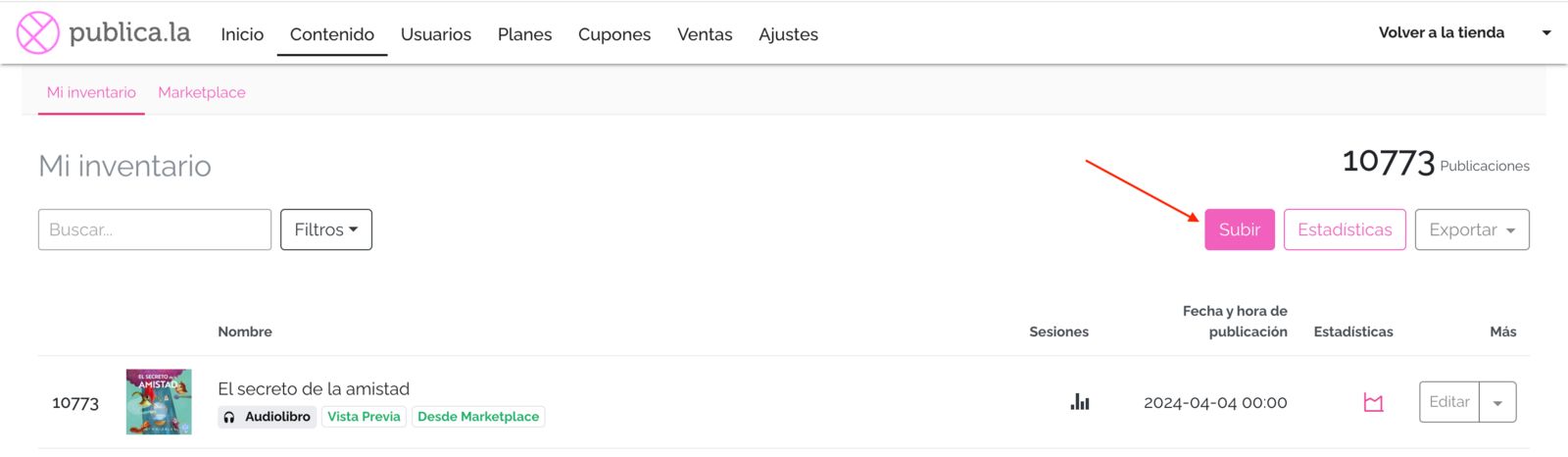
Go to Control Panel > Content > My inventory > Upload.
-
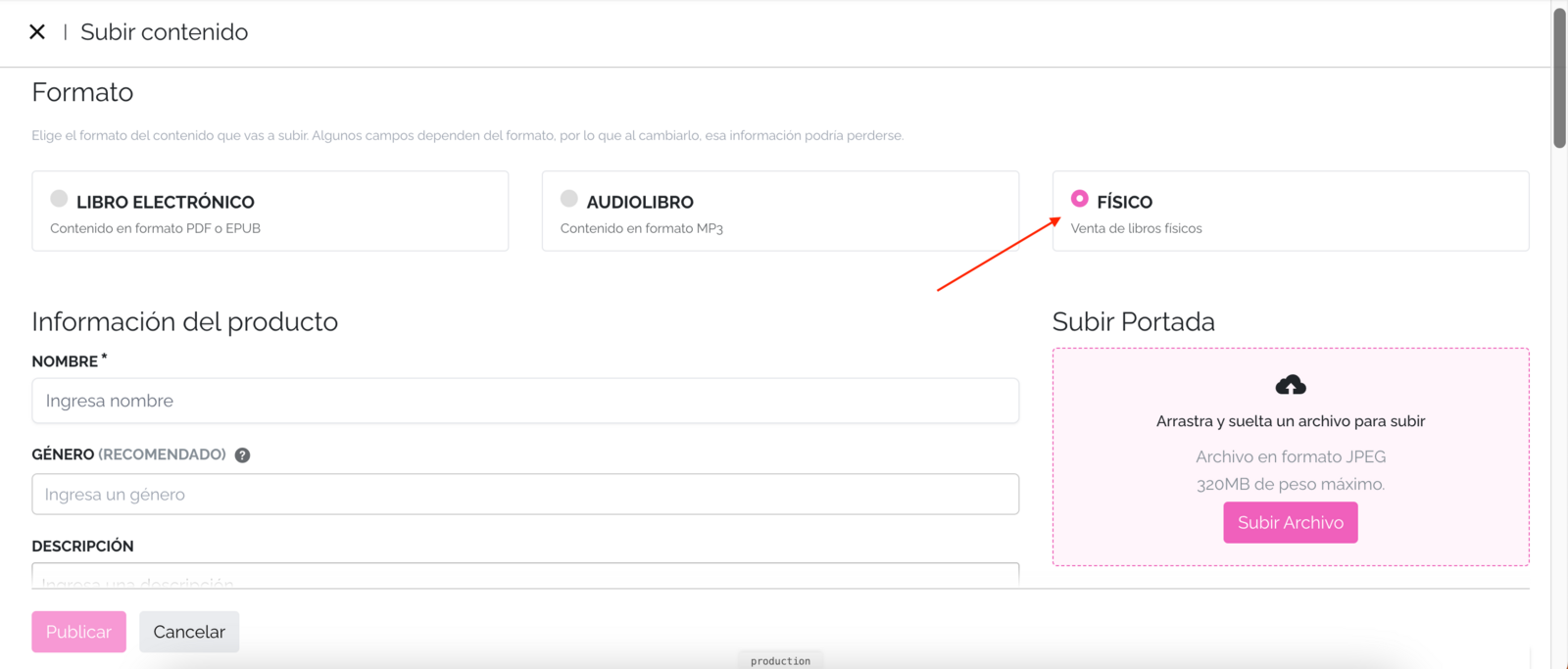
Select Format > Physical.
-
Fill in the Product information. Here you will notice another difference from digital publications, since you must upload a cover.
-
Fill in the rest of the metadata, which is the same as required for digital publications (Identifiers, Prices, General information, Related formats, Private material, Geographic restrictions).
-
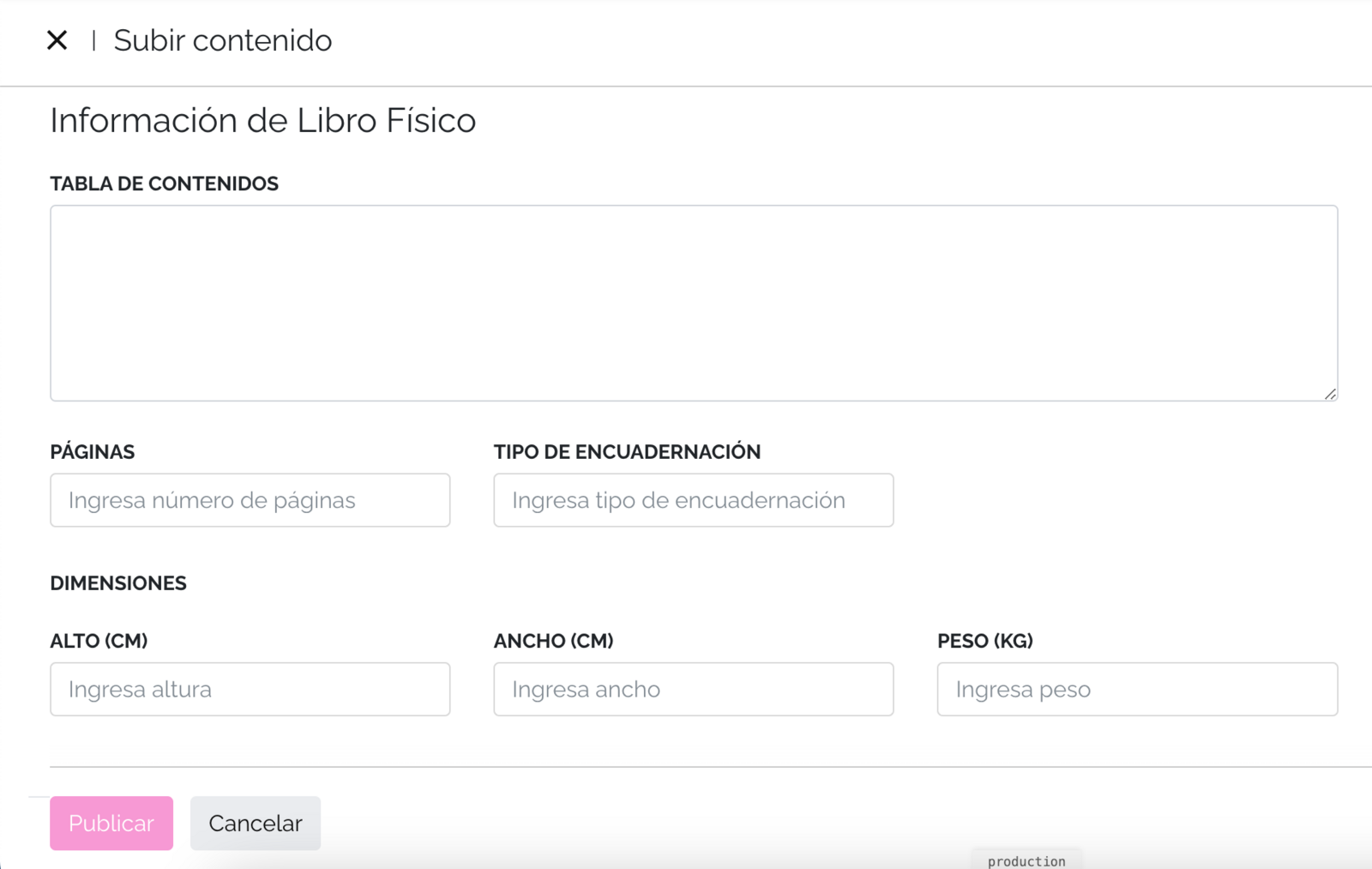
In the specific section: Physical Book Information you will see the following fields to complete.
- Table of contents: fill in this section manually for physical books. Here you can include, for example, the index of your publication.
- Pages: enter the number of pages of the book.
- Binding type: for example hardcover, pocket edition, paperback, etc.
- Dimensions: Height (cm), Width (cm), Weight (Kg):
- Stock: enter how many units you have for sale:
- Stock available: type the quantity in Total stock (1 or more). Every approved sale will subtract units automatically.
- Show as sold out: saves the publication with 0 units and it cannot be purchased.
💡 If you leave Total stock empty, the publication does not track stock: it sells normally, but each buyer can take only 1 unit per purchase.
-
Click Publish.
All set! You should be able to see your publication available in the store.
CONTROLLING THE STOCK
When your book has units loaded, this is what happens:
- Buying several units: your buyers will see a Quantity selector that goes up to the units available. When 5 or fewer remain, the product page shows "Only N left".
- Sale: every approved payment subtracts the units purchased.
- Sold out: when the stock reaches 0, the publication stays visible in your store with a Sold out label and no purchase buttons. If a buyer already had it in the cart, it is left out of the charge.
- Restocking: edit the publication, choose Stock available and type the new quantity. The number you type replaces the previous one, it is not added to it.
- History: in My inventory, the menu of each physical book includes the Stock history option, with every sale and every manual change and the resulting quantity.
⚠️ Refunds, cancellations and chargebacks do not return units to the stock. If the book comes back to your warehouse, update the quantity manually.
⚠️ Once you load a quantity, you can no longer leave the field empty from the Control Panel to stop tracking stock. Load a quantity only for the books you plan to keep counting.
You can also load the stock in bulk with the publications update import (stock quantity column, identifying each book by its ISBN).
The next step is to set up the shipping zones. To learn how to do it you can see our other help center article: Set up the shipping zones
We hope this article has been helpful. However, do not hesitate to contact us with any question at [email protected].