Add-ons
In this article we show you how to create, edit and publish add-ons in your PDF and EPUB publications. Add-ons is the new version of what you used to know as Smart Zoom.
✨Turn your publications into enriched editions ✨
An add-on is a piece of content you attach to a precise spot in a publication: an article, a video, an audio clip, an image, a link or a 3D object. Your readers open it from a marker on the page, in a panel beside the text.
Add-ons work especially well in publications laid out in columns and sections, such as newspapers, magazines and journals.
Now you create and edit them in the reader itself, on the page you are looking at.
In this article:
- Open the Add-ons panel
- Create an add-on
- Choose where the add-on sits
- Fill in the form
- Preview, draft and publish
- Edit or delete an add-on
- Limits and troubleshooting
1. Open the Add-ons panel
To create and edit add-ons you need:
- To be a store admin: a user with the Admin profile. The Plan Admin profile and regular users cannot.
- The store must own the publication.
- A publication in PDF format, fixed-layout EPUB, or reflowable EPUB with printed page numbers. Audiobooks are not supported.
- To use the web reader. It does not work in the apps, in preview, or in anonymous or automatic-login sessions.
You can open the panel in two ways.
From the control panel:
Go to Control Panel > Content > My inventory or Control Panel > Publications and find the publication. Click the dropdown menu next to Edit and choose Add-ons.
The reader opens in a new tab with the Add-ons panel already open.
From the reader:
Open the publication in the web reader while signed in as a store admin and click the Add-ons button in the header. You see it even when the publication has no add-ons yet.
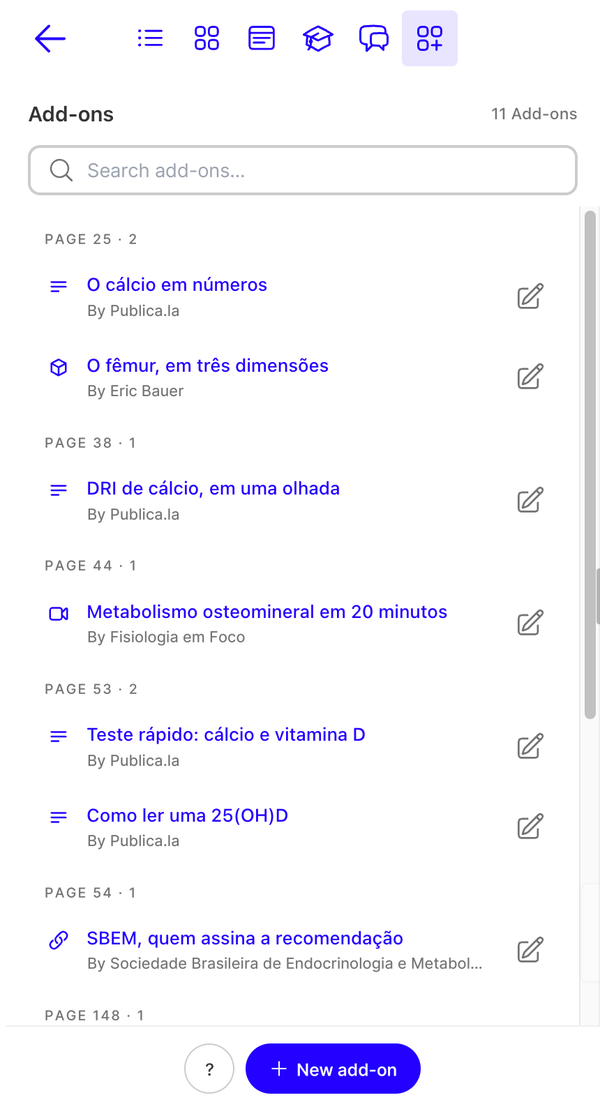
There is no edit mode to switch on: the reader recognizes that you are an admin and shows the editing controls inside the panel. Your readers never see them.
2. Create an add-on
You can start an add-on from three places:
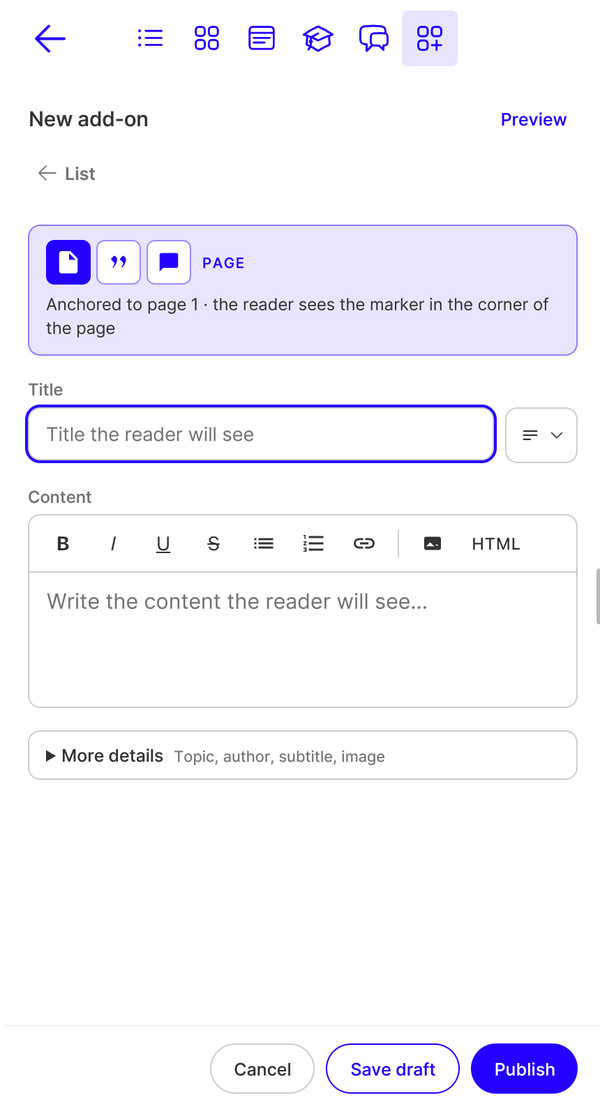
- From the panel: click New add-on at the bottom of the list. The form opens anchored to the page on screen.
- From a text: select text on the page and choose Create add-on in the selection menu, next to the highlight, note and flashcard actions. The form opens anchored to the selected passage.
- From an image (reflowable EPUB only): open the image in the enlarged viewer and choose the option to add an add-on to it. This is the only way to anchor an add-on to a figure.
3. Choose where the add-on sits
The anchor block is at the top of the form. The options depend on the publication's format:
| Format | Anchors offered |
|---|---|
| Page, Passage, Point | |
| Fixed-layout EPUB | Page, Passage, Point |
| Reflowable EPUB with printed page numbers | Page, Passage, Figure (only from the image viewer) |
- Page: the whole page. It uses the page now on screen.
- Passage: a selection of text. In a PDF, a passage covers one page.
- Point: an exact spot on a page.
- Figure: an image in a reflowable EPUB.
To place a passage or a point:
1. In the anchor block, choose Passage or Point.
2. Read the hint at the top of the panel. It asks you to select the passage or tap the spot, and it has a Cancel button.
3. Select the passage, or tap the spot on the page.
Until the add-on is placed, Save draft and Publish stay disabled. Before you save, the reader draws the unsaved add-on on the page with a pending marker.
An existing anchor can be moved or switched to another kind from the same block.
4. Fill in the form
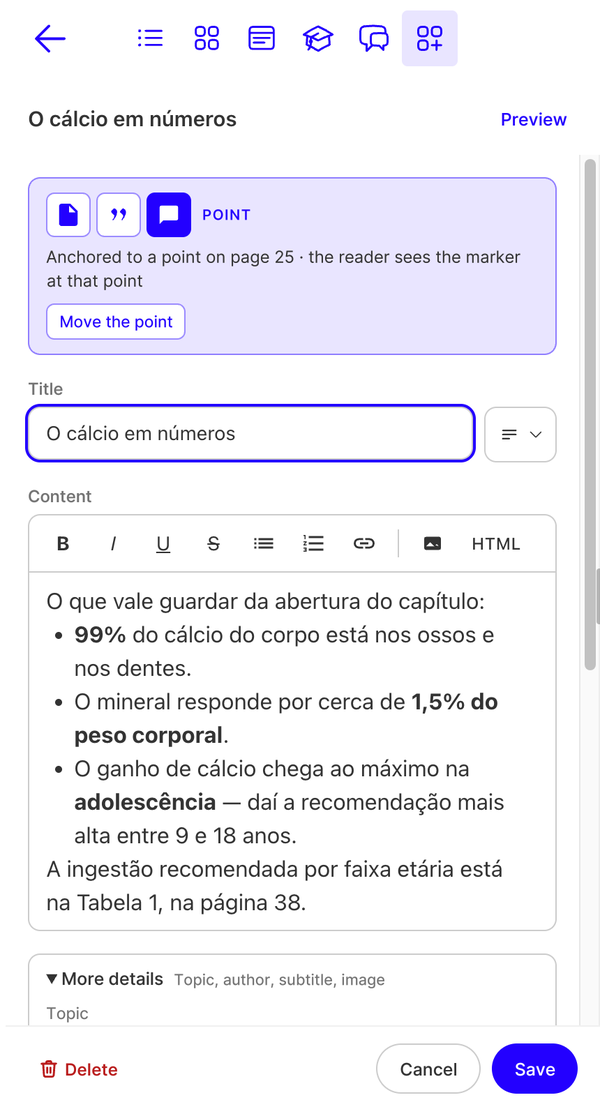
One form serves every type of add-on. The only required field is the Title.
| Field | Required | Limit | What it holds |
|---|---|---|---|
| Title | Yes | 255 characters | The headline of the add-on |
| Content | No | 60,000 characters, excluding formatting | The body, written in the rich text editor |
| Topic | No | 255 characters | A short line above the title |
| Author | No | 255 characters | Who wrote the piece |
| Subtitle | No | 1,000 characters | The descriptive line for the piece |
| Featured image | No | Valid URL, or a file up to 10 MB | The picture shown with the piece |
| Image caption | No | 2,000 characters | The text shown with the featured image |
The Topic, Author, Subtitle and Image fields are in the More details section, which is folded.
The form has no character counters. If you go over a limit, you see a generic error message when you save.
Choose the icon
The icon is the add-on's type and only changes the picture the reader sees on the marker: article, video, audio, 3D, link or image. New add-ons start on Automatic, which picks it from the content (for example, an embedded video shows the video icon). You can pick a different one at any time.
Write the content
The editor is rich text. Its toolbar offers bold, italic, underline, strikethrough, two list types, links and inserting an image by URL. The HTML button switches to editing the code.
To add a video, an audio clip or interactive content, paste the provider's URL: the editor offers to embed it or keep it as a link. Only https embeds from these providers are accepted:
| Kind | Providers |
|---|---|
| Video | YouTube, Vimeo, Dailymotion, Skiv, Rudo, Kaltura, Panopto, Panda Video, SambaTech, Brightcove, JW Player, Mux, Cloudflare Stream |
| Audio | Spotify, SoundCloud |
| Interactive | GoConqr, Genially, Wordwall, Kahoot, Sketchfab, Google Docs, Macmillan |
⚠️ When you save, the content is cleaned: code that is not allowed is discarded, for example an iframe from another provider. When you paste something the editor cannot keep, it tells you what it discarded.
Add a featured image
The image comes from a URL or from your device. A file must be JPEG, PNG, GIF or WebP, up to 10 MB. Choosing one replaces the other, and the form shows a preview.
5. Preview, draft and publish
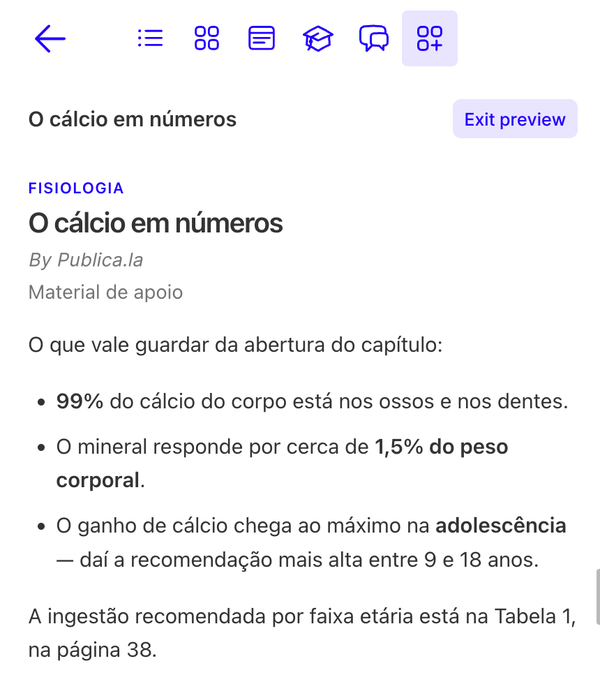
Click Preview to see the add-on as your readers will see it, and Exit preview to go back to the form.
The actions at the bottom of the form depend on the state of the add-on:
| State | Actions | What happens |
|---|---|---|
| New | Cancel, Save draft, Publish | Publish asks for confirmation, because every reader will see the add-on |
| Stored draft | Delete, Back, Publish | Changes save by themselves one second after your last edit |
| Published | Delete, Cancel, Save | From the reader you cannot move it back to draft |
To publish a new add-on:
1. Fill in the form and set the anchor.
2. Click Publish.
3. Confirm the question that appears.
Only store admins see drafts, marked with a Draft label. Your readers never receive them.
💡 Save the add-on as a draft as soon as you start it. If you open another reader panel, such as Notebook, Table of Contents or Search, the Add-ons panel closes and a new unsaved add-on, or unsaved changes to a published one, are discarded without warning. Drafts are kept because they save themselves.
6. Edit or delete an add-on
Edit:
1. Open the Add-ons panel and click the pencil on the add-on's row. The reader turns to its page.
2. Change the fields or the anchor.
3. For a published add-on click Save. For a draft click Back, which saves your last change.
You see the change right away. Readers who already have the publication open see it the next time they open it.
Delete:
1. Open the add-on for editing with the pencil.
2. Click Delete at the bottom of the form.
3. Confirm the question in the panel. It warns you that readers will no longer see the add-on.
A published add-on cannot be unpublished from the reader: deleting it is how you remove it.
Finish a draft created through the API: if you loaded drafts in bulk with the add-ons API, they are anchored to a page. To finish one, open it with the pencil, place it as a Passage or a Point if you want, and click Publish.
7. Limits and troubleshooting
What you cannot do from the reader:
- Create add-ons in bulk: use the Add-ons API v3.
- Create add-ons in audiobooks or in reflowable EPUBs without printed page numbers.
- Place a point in a reflowable EPUB, or a figure outside a reflowable EPUB.
- Edit from the apps, or content the store does not own.
If you do not see the Add-ons option or the editing controls, check that:
- Your user has the Admin profile.
- You are in the web reader, not in a preview or an anonymous session.
- The store owns the publication.
- The publication is not an audiobook or a reflowable EPUB without printed page numbers.
If an error message appears when you save: the form stays open. Check the limits in the table in step 4 and that the image URL is valid.
If Save draft and Publish are disabled: you chose Passage or Point and have not placed it on the page yet.
If a passage in a PDF does not work: a passage covers a single page. Use the Page anchor when the add-on is about the whole sheet.
We hope this tutorial has been easy for you. If you have questions, write to us at [email protected]