Advanced Reader Settings
In this article, we'll walk you through the reader's configuration options that let you customize your visual and accessibility experience while reading.
To access these settings, click the aA icon in the upper right corner of the reader.

| Some settings are only available for publications in EPUB format. These options will not appear in PDF publications.
APPEARANCE
You'll find three general theme options for the reader:
- System (split circle icon): follows your device's light or dark mode setting.
- Light (sun icon): white background with dark text.
- Dark (moon icon): dark background with light text.

TEXT SIZE
Adjust the text size using the A (decrease) and A (increase) buttons. The current percentage will be shown between both buttons.

READING MODES
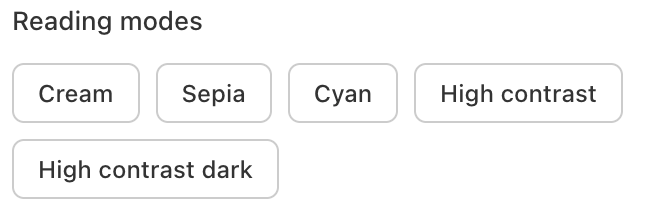 In addition to the general theme, you can choose from specific color modes that modify the background and text tone:
- Cream: warm background, ideal for long reading sessions.
- Sepia: brown tones that reduce contrast.
- Cyan: background with a bluish tone.
- High contrast: white background with black text for maximum contrast.
- Dark high contrast: black background with white text for maximum contrast.
| High contrast and Dark high contrast modes are designed for users with low vision and comply with international visual accessibility standards.
TYPOGRAPHY
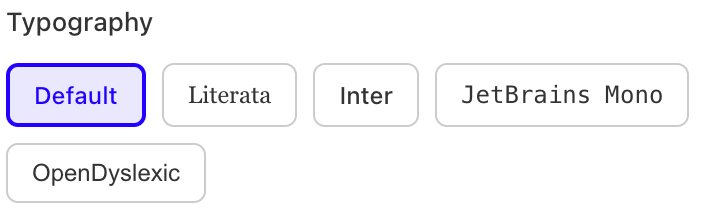 Choose the font you want to read with. The available options are:
- Default: the original typeface of the publication.
- Literata: serif, designed for on-screen reading.
- Inter: sans-serif, neutral and highly legible.
- JetBrains Mono: monospaced typeface.
- OpenDyslexic: designed to facilitate reading for people with dyslexia.
| This option is only available for publications in EPUB format.
LINE SPACING
 Adjust the vertical space between lines of text to your comfort:
| Level | Description |
|---|---|
| Compact | Lines closer together |
| Normal | Default spacing |
| Wide | Lines further apart — recommended for long sessions or if you experience eye fatigue |
| This option is only available for publications in EPUB format.
MARGINS
Control the width of the side margins of the reading area:
 | Level | Description |
| ---- |
| No margins | Full-width text |
| Normal | Default margins |
| Wide | More lateral space — more comfortable on large screens |
| Level | Description |
| ---- |
| No margins | Full-width text |
| Normal | Default margins |
| Wide | More lateral space — more comfortable on large screens |
| This option is only available for publications in EPUB format.
PAGE LAYOUT
Choose how you want to navigate within the publication:
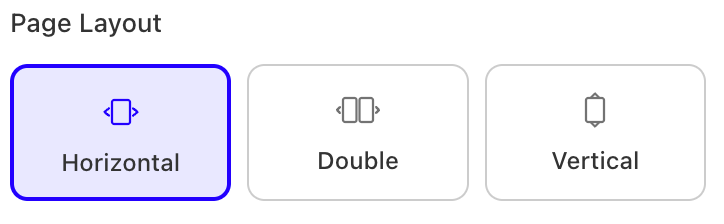
- Horizontal: turn pages from left to right.
- Double page: view two pages at the same time, like an open book.
- Vertical: continuous downward scrolling.
RESET VISUAL SETTINGS
If you want to return to the original values all at once, you can use the Reset values button. This will restore all visual preferences to their defaults:
- Appearance and reading mode
- Text size
- Typography
- Line spacing
- Margins
- Scroll direction
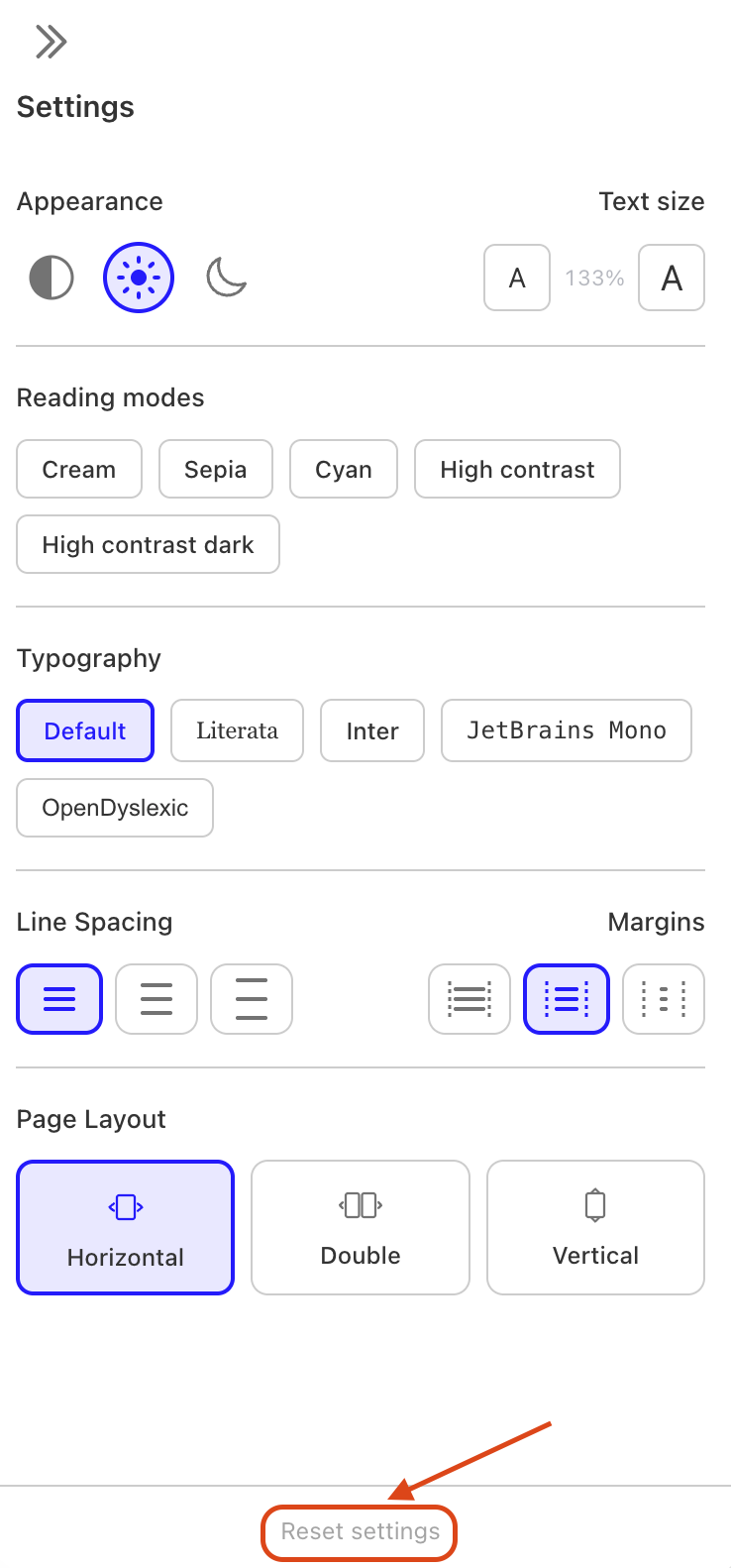
|| Your reading position, highlights, and notes will not be affected when resetting the settings.
We hope you found this article to be helpful. If you have any questions, don´t hesitate to reach out to us at [email protected].