How to create coupons
In this article we will show you how to create discount coupons and associate them to your users, plans or publications.
Create discount coupons to offer your users and improve your marketing and loyalty campaigns.
Besides the percentage discount, you can create Take N, pay M coupons (for example, a 3x2) and Free shipping coupons. We explain them further down in this article.
You can create coupons for your users to redeem on certain publications or assigned plans, or you can assign coupons to specific users to use coupons associated with certain plans or publications.
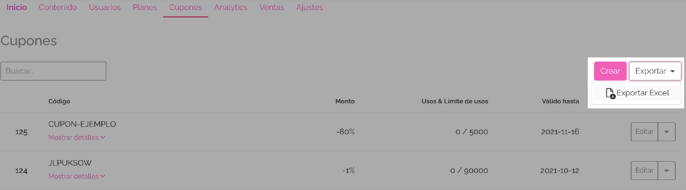
1. Go to Control Panel → Coupons and click on Create:
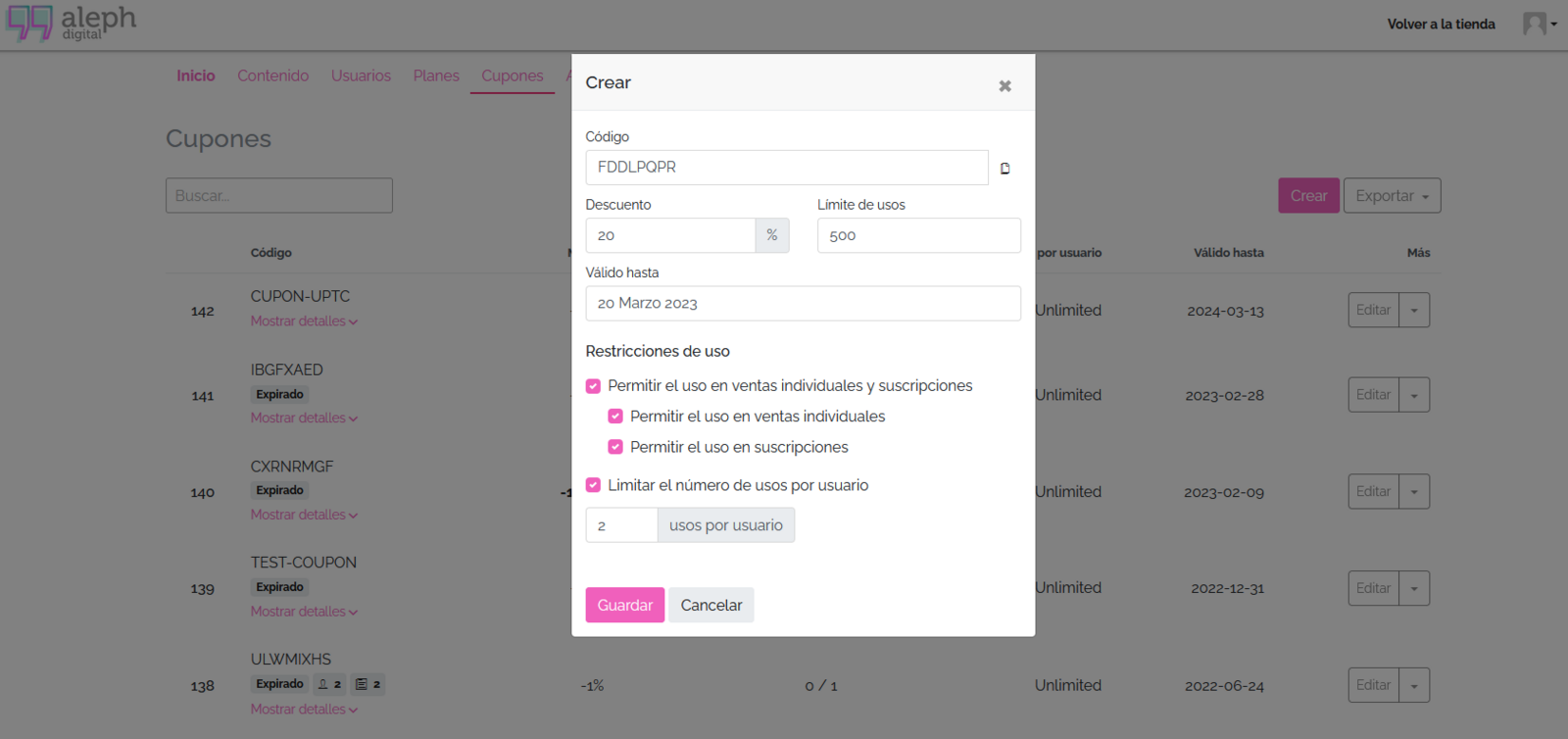
2. A window will open where you will have to fill in the following fields:
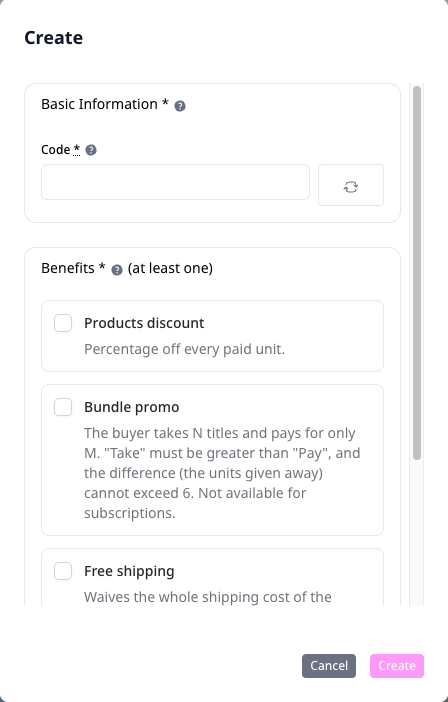
Basic information:
-
Code: (optional) You can use the system's random code or create a custom one. Please note that this field cannot be modified, so in case of an error you will have to create a new coupon.
If you decide to use a custom code, you can use numbers, letters and/or dashes "-". For example "HOTSALE", "50-OFF" or "ALUMNI".
You will not be able to use the same code again: if you created a coupon "HOTSALE", you won't be able to use that same name to create another coupon. You can use "HOTSALE20" or other alternatives.
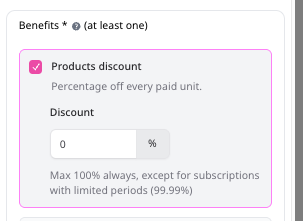
- Discount: Enter the discount percentage you wish to assign. The percentage must be a whole number between 1% and 80% for Growth plans and between 1% and 100% for Enterprise plans.
Benefits:
The form shows the benefits as cards. You must choose at least one, and you will not be able to change them once the coupon is created:
-
Products discount: the percentage you entered in the Discount field.
-
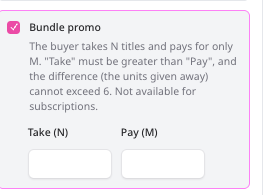
Bundle promo (Take N, pay M): the reader takes N titles and pays for only M, as in a 3x2.
-
Free shipping: waives the whole shipping cost of orders with physical products.
A Bundle promo coupon cannot be combined with a percentage discount. Free shipping can be combined with either of the other two.
Coupon application:
You can select one or both options. If you don't select either, the coupon will have no restriction and can be applied to any product in the store.
-
Individual sales: the coupon can be redeemed for individually-sold titles or publications.
-
Subscriptions: the coupon can be applied to subscription or one-time payment plans.
If you allow redemption on recurring subscriptions, you will need to indicate whether you want the coupon to apply for a certain number of periods or for the entire duration of the subscription.
-
For example, you can offer a 50% discount for the first 3 months, and after that period the user will pay the full subscription price.
If you select Unlimited periods, the user will always pay the reduced price.
When you select either option, a field will appear where you can choose one or more specific titles or plans the coupon can be applied to. If you don't select a specific title or plan, the coupon can be redeemed without restrictions on that type of product.
If you update the price of your plan, the behavior of the discount varies depending on the coupon type:
→ No defined duration (unlimited periods): the discount is automatically recalculated on the new price. The change is propagated to the payment gateway without you having to do anything. → Defined duration (e.g. 3 or 6 months): the discount is frozen at the price in effect when the user subscribed. Those subscriptions will not receive the new price until the discount period ends.
Use restrictions
-
Use limit: This limit corresponds to the total number of times the coupon can be used.
-
Uses per user: restricts the number of times the same user can apply the coupon (only applies if the coupon has a use limit greater than 1). If you leave this option unchecked, there will be no limit on how many times the same user can redeem this code until the coupon's general use limit is reached.
-
Uses per publication: determines how many times a coupon can be applied to the same title.
Once the use limit has been reached, the coupon expires and can no longer be used.
Expiration
- Expiration date: Here you can set the deadline users have to redeem the coupon. After the indicated date, the coupon expires and can no longer be used.
NOTE: this date is not related to the period of time during which the user will have access to the content. If a coupon is redeemed for a publication or subscription, the user will have access to the content for life, unless you manually cancel their access.
If the coupon is active, you can edit the date to extend its validity: go to the coupon and click Edit. Select the date and click Save.
3. Once you have completed the fields, click Save. Done! You can now see the coupon created in your store.
You can deactivate the coupon at any time without having to wait for the end date. To do this, go to Edit the coupon and click Deactivate coupon.
You can also modify, once the coupon has been created, its use limit (general and per user) as well as the expiration date, as long as the use count is not lower than the currently used amount and the new expiration date is in the future.
4. If you want to associate the coupon to specific users, after creating it click on the dropdown menu

next to the Edit button of each coupon. There, choose whether you want to associate the coupon to users, plans and/or publications. You can choose more than one value: you can allow the users you specify to use the coupon on specific plans and/or publications.

If you do not associate the coupon to specific users, publications or plans, it can be redeemed by any user who has access to the code and can be applied to any content in the store (plans or publications).
Coupons can only be applied to your own plans and/or publications, Marketplace content cannot be purchased using discount coupons.
Done! Now that the coupon is created, you can share the Code with your users.
"Take N, pay M" coupons
With this coupon you can set up classic promotions such as "3x2" or "take 4, pay 3": your reader adds titles to the cart, enters the code, and the cheapest titles of each group come free. For example, with a 3x2 and titles priced 600, 400 and 300, the reader pays 1,000 and takes the 300 title for free.
How to create it:
1. Go to Control Panel → Coupons and click Create.
2. Turn on the Bundle promo benefit.
3. Fill in Take (N) and Pay (M). For a 3x2, Take is 3 and Pay is 2.
4. If you want, choose specific titles. If you choose none, the promotion applies to the whole catalog.
5. Set the usage limits and expiration as with any coupon, and click Save.
Rules to keep in mind:
- Take must be greater than Pay, and you can give away up to 6 titles per group. For example, a "take 10, pay 3" is not allowed.
- If you choose specific titles, you must choose exactly N + M titles (5 for a 3x2).
- It only applies to individual sales: it cannot be used on subscription plans or on Marketplace titles.
- It cannot be combined with a percentage discount in the same coupon.
- Once the coupon is created you cannot change the N and M values. If you want a different promotion, create a new coupon.
- The Uses per publication limit does not apply to this coupon.
How the groups are formed:
1. The titles in the cart are sorted from the most to the least expensive.
2. Groups of N titles are formed in that order. Leftover titles that do not complete a group pay full price.
3. In each group, the cheapest titles come free (N minus M titles). The reader cannot choose which one is free.
| Cart with a 3x2 (prices) | Free titles | The reader pays |
|---|---|---|
| 600, 400, 300 | 300 | 1,000 |
| 600, 500, 400, 300, 200, 100 | 400 and 100 | 1,600 |
| 600, 400 | None | 1,000 |
Each group spends one use of the coupon: with a 3x2 and 6 titles in the cart, two groups are formed and two uses are spent. The same goes for Uses per user, which also counts groups.
If the coupon has fewer uses left than there are groups in the cart, the promotion applies to the most valuable groups and the rest pay full price.
Physical books: a physical book bought in several units joins the promotion only with 1 unit or exactly N units. With any other quantity it pays full price.
What your reader sees: when the code is applied, the order summary shows the promotion instead of a regular discount, and the free title appears as Free with its price struck through. If there are not enough titles in the cart yet, the code stays applied, the total does not change, and the reader is told to complete the promotion.
Free shipping coupons
A free shipping coupon waives the whole shipping cost of orders with physical products. The full shipping is always covered: there are no partial discounts. It is useful to remove one of the most common reasons for abandoning physical book purchases and to launch print titles. You can use it on its own or combined with another benefit:
| Coupon | What your reader gets |
|---|---|
| Free shipping | The shipping is free and prices do not change |
| Products discount + Free shipping | A percentage off the products and the shipping |
| Bundle promo + Free shipping | Free titles in each group and the shipping |
How to create it:
1. Go to Control Panel → Coupons and click Create.
2. Turn on the Free shipping benefit. If you want, also turn on Products discount or Bundle promo.
3. Choose where it applies: Individual sales, Subscriptions or both.
4. If you want, choose specific titles. If you choose titles, at least one must be physical. If you choose none, the coupon applies to the whole catalog.
5. If the coupon applies to subscriptions, set for how many billing cycles the shipping is free, or leave it unlimited. After those cycles, the shipping is charged again automatically.
6. Set the usage limits and expiration, and click Save.
When it applies:
- The cart must have at least one physical product and the coupon must apply to at least one product in the cart. The physical product does not need to be one of the coupon's titles.
- If the cart only has digital products, or if the reader picks a carrier that is already free, a free-shipping-only coupon is rejected because there is nothing to discount. If the reader switches to a carrier with a cost, the coupon applies again automatically.
- A free-shipping-only coupon spends one use per order, whatever the number of products. Uses per user counts orders.
- Uses are spent when the payment is approved, not when the reader applies the code.
What your reader sees: the shipping cost appears as free in the order summary and in the carrier list, and their purchases show a badge with the coupon code. In the dashboard, the shipping note indicates that the shipping was free thanks to the coupon.
To obtain the created codes you can:
- View them from the panel:
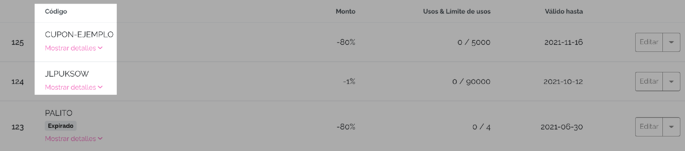
- Export the list of all coupons in xlsx format (Excel file). To do this, click on Export → Export Excel and you will receive the report in your email.
Your users can redeem the coupon as follows:

From the main section of the store they can choose the publication or plan they wish to purchase, and instead of choosing a payment method they should click on "I have a coupon" and enter the coupon code. You can share the following guide to help them complete the process.
If you need to massively create coupons with different discount codes for specific publications or plans, you can view the following article.
ADDITIONAL INFORMATION FOR FULL E-COMMERCE, GROWTH AND REVENUE SHARE PLANS
- You can request 100% coupons for a value of 1 USD each to be exchanged for publications or prepaid plans. Write to [email protected] indicating the data to generate the coupon.
- The generation time for these coupons can be up to 48 business hours.
We hope you find this tutorial helpful. If you have any questions, write to us at [email protected].