How to run a presale
Learn the steps to launch your newest titles with a presale.
Sometimes, when a book's publication is announced, it is offered at a promotional price before its release date. Users can buy it, but they can only read it on the agreed date. To do this, you need to follow a series of steps in the store. We recommend reading the whole guide before you start, so you are aware of all the important notes and clarifications.
First, you need to know whether you will be uploading an EPUB or a PDF (it could also be an MP3). Once you know that, you can create the material you will upload to the store temporarily, since it has to match the format of the final publication you will upload later. We will need the cover and/or a file with information about the presale. Once you have created these files, you can go ahead and upload the publication.
IMPORTANT: the temporary file you upload must be in the same format as the final publication, whether an EPUB, PDF or MP3.
EPUB or PDF presale
-
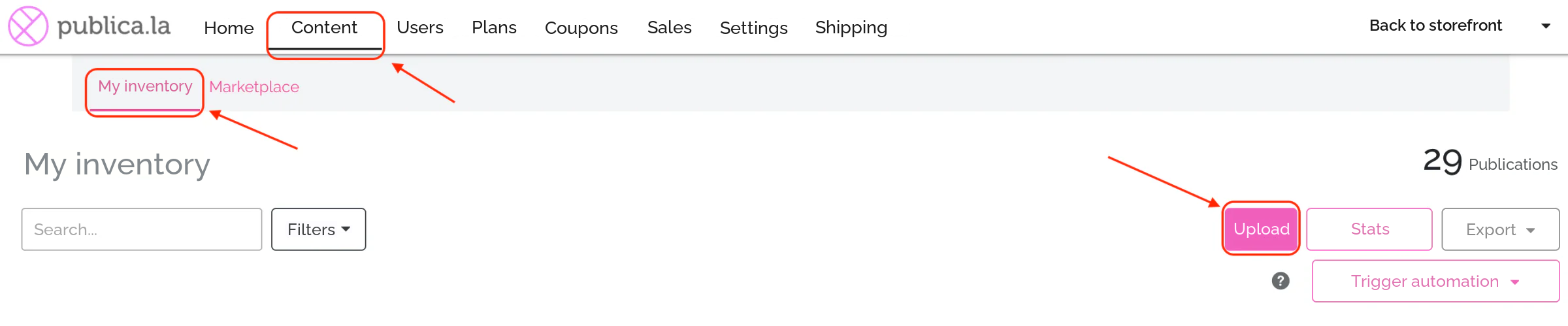
Go to Control Panel > Content > My inventory > Upload.
-
Select the EPUB or PDF file that you will upload temporarily until the release date (it will not be the real or complete publication). It can be, for example, a file with only the first two or three chapters of the publication, or the cover, the author's biography and the book's synopsis.
-
Fill in the metadata and click Publish. (More information about how to upload an EPUB or PDF HERE)
During this period users will buy the publication, but since you uploaded a temporary file, they will only see that file. Usually a sample of the content or a file with information about the presale is uploaded.
-
When the release day arrives, go to Control Panel > Content > My inventory.
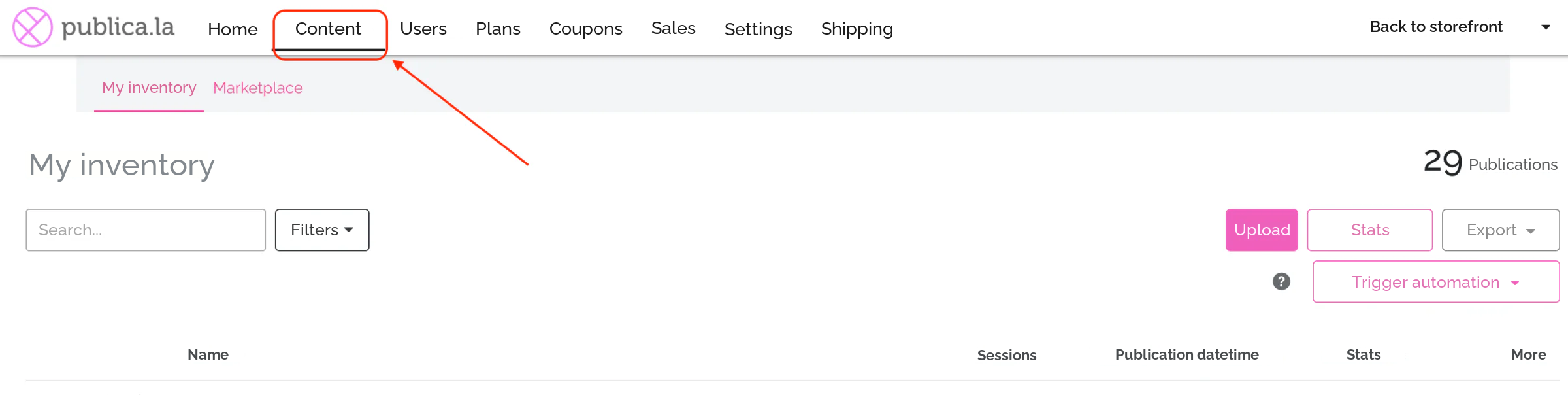
TIP: before moving on to step 5, it is recommended (though not essential) to check that the file can be processed correctly in the store by clicking Upload. Set a future date for this temporary test publication so it is not visible to end users. After checking that it uploads and processes correctly, you can delete it.
-
Find the publication and click Edit V > Update EPUB/PDF file
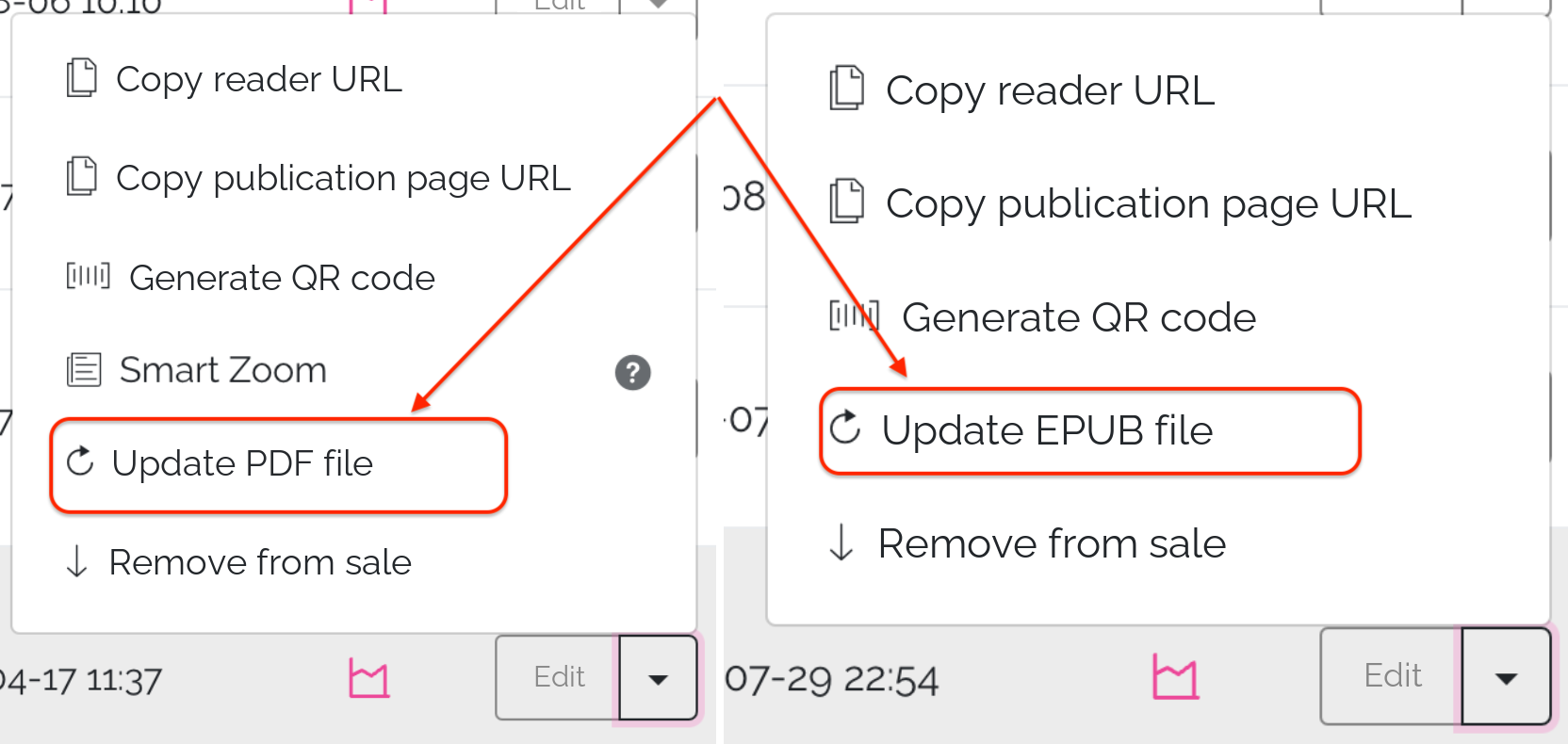
NOTE: you will be given the specific PDF or EPUB option. That is why it is so important that the temporary file you upload at first matches the format of the permanent file you will finally upload.
-
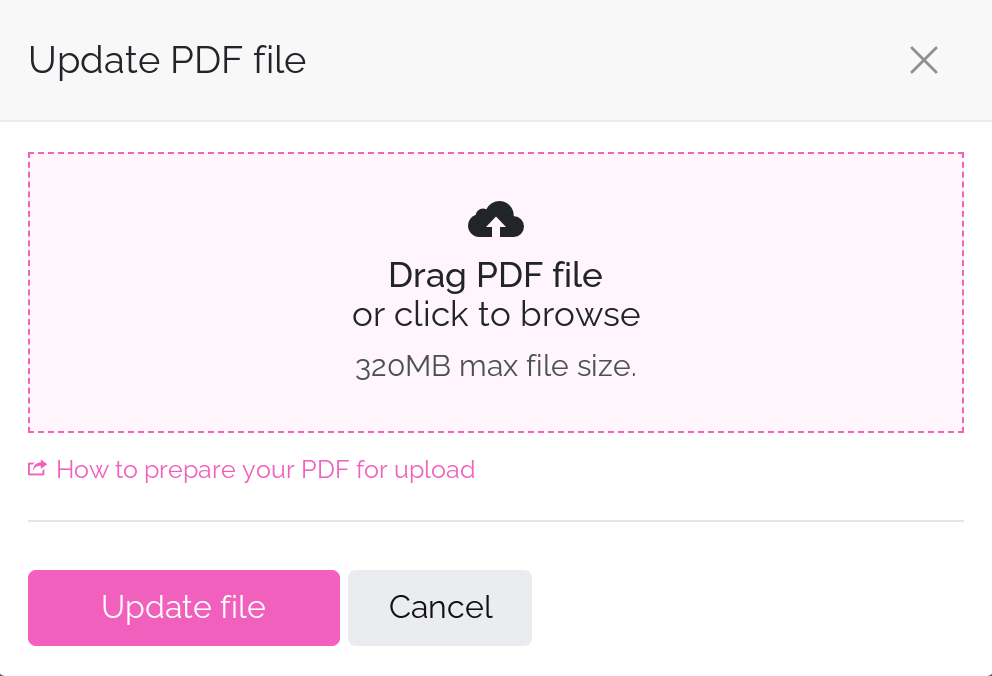
Find the complete file on your computer and click Update file.
-
If you also need to update the price, you can click the Edit button, change it and click Update.
Audiobook presale
-
Go to Control Panel > Content > My inventory > Upload.
-
Select the Audiobook format.
-
Find the file on your computer or drag it into the pink box.
-
Fill in the publication's information and click Publish. (More information about how to upload an audiobook HERE)
NOTE: at this step you can upload only one file (equivalent to one chapter or track). Make sure this file is not the complete publication and represents only a sample.
-
On release day, go to Control Panel > Content > My inventory > Edit V > Manage tracks.
-
Upload the rest of the tracks by clicking Choose files. Once you have selected them, click Add.
-
If needed, you can also update the price from Control Panel > Content > My inventory > Edit.
Done! Everyone who bought the publication during the presale will now have access to the full content, and users who buy the publication from this moment on will pay the final price.
We hope this tutorial was easy to follow and useful. If you have any questions, feel free to write to us at [email protected].