Read aloud in the reader
Listen to your books while the reader highlights what it is reading. In EPUB and PDF it reads with a synthetic voice, continuously from the page on screen to the end of the book. In narrated books (Read-Along), the publisher's recording plays.
In this article:
- Open the read aloud bar
- Bar controls
- Read aloud settings
- Listen to a selection, a note or an AI answer
- Narrated books (Read-Along)
- What to know
- Frequently asked questions
1. Open the read aloud bar
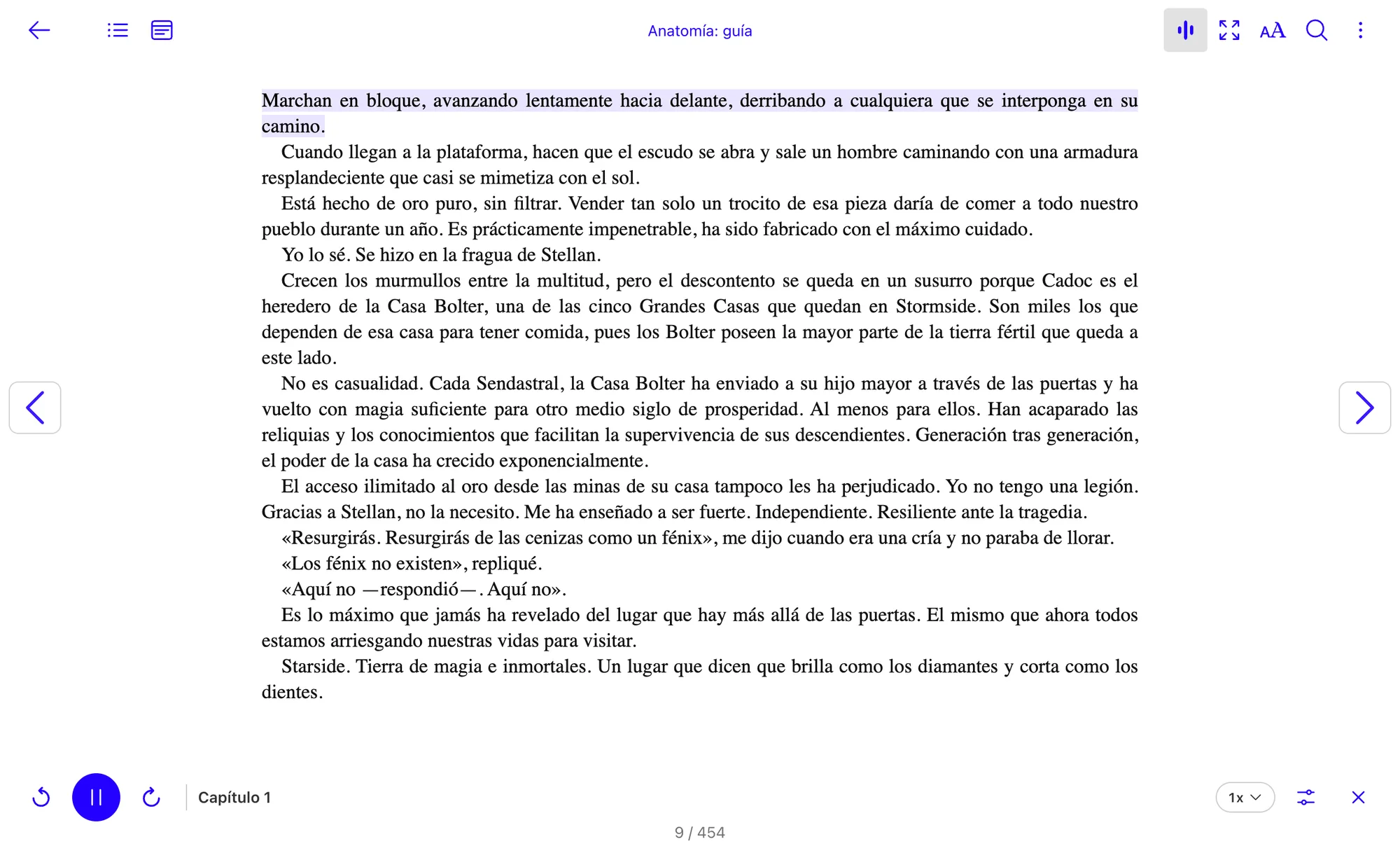
Click the Audio tool in the reader header (on a phone it is at the bottom of the screen) or press Shift + Alt + R. A read aloud bar opens:
- EPUB and PDF: it reads from the page on screen to the end of the book, turns pages and chapters by itself, and highlights what it reads. In PDF it works in scroll, single-page and double-page modes.
- Narrated books (Read-Along): the publisher's recording plays and each word is highlighted as you hear it.
- Audiobooks: they have their own player. See how to play audiobooks.
2. Bar controls
- Play and pause: starts or stops the reading.
- Circular arrows: jump to the previous or the next sentence.
- Title: shows the chapter or page being read.
- Speed (1x): changes how fast it reads (0.75x, 1x, 1.25x, 1.5x or 2x).
- Settings: opens the read aloud settings.
- X: closes the bar and stops the reading.
The bar does not cover the page, not even on a phone. The reading keeps playing while you open the table of contents, search or your notes. To read from somewhere else, tap or click the paragraph you want.
3. Read aloud settings
Click the sliders icon in the bar to open the read aloud settings. They are saved in your browser or device, not in your account, and most of them carry over to the next book. Reset returns one setting to its initial value, and Reset all returns all of them.
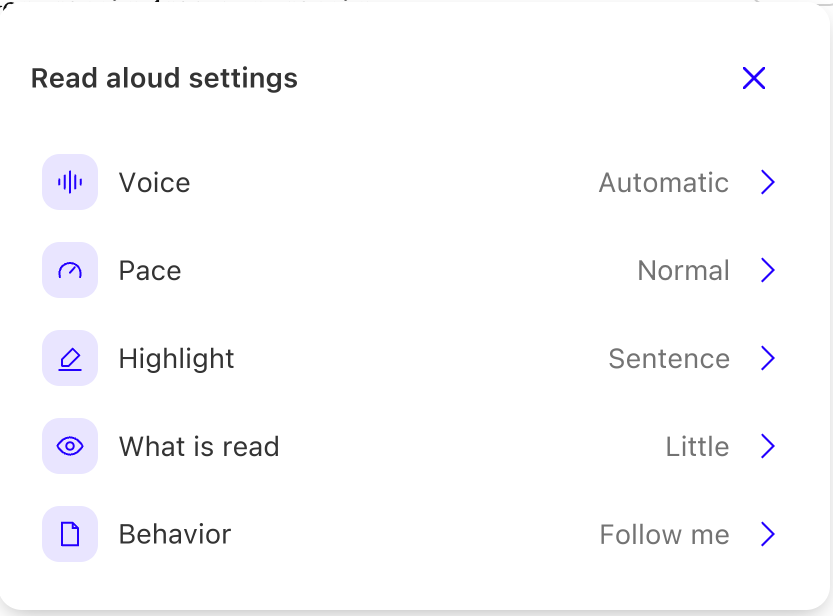
Voice
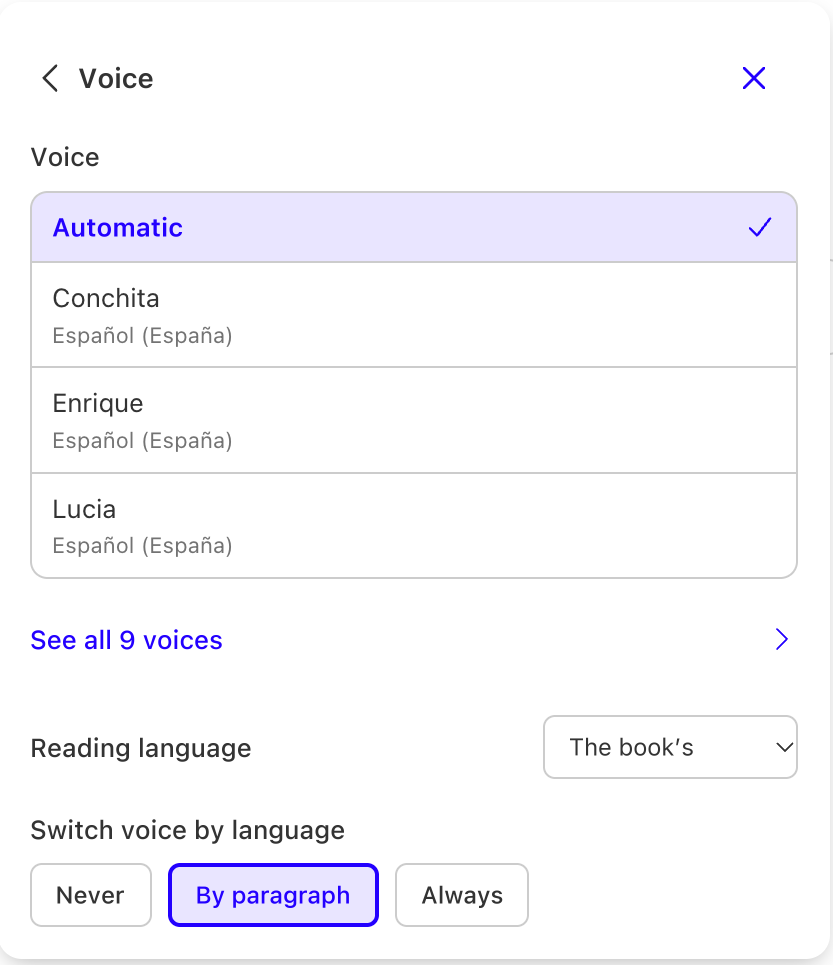
Pick a voice from the list, which is sorted by region. In Reading language you can keep the book's language or set another one. If the book has passages in other languages, Switch voice by language uses a different voice for each (never, by paragraph or always). You can also adjust the volume and the pitch.
Pace
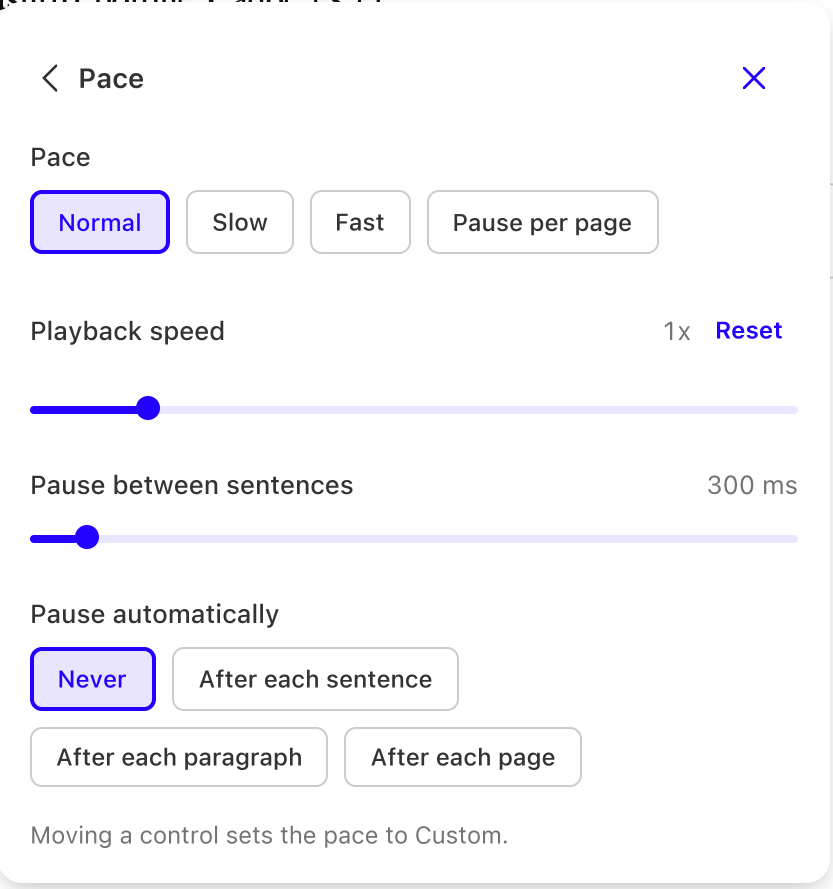
Pick a quick pace (normal, slow, fast or pause per page) or fine-tune it with the playback speed and the pause between sentences. In Pause automatically you can make it stop after each sentence, paragraph or page. If you move a control, the pace changes to Custom.
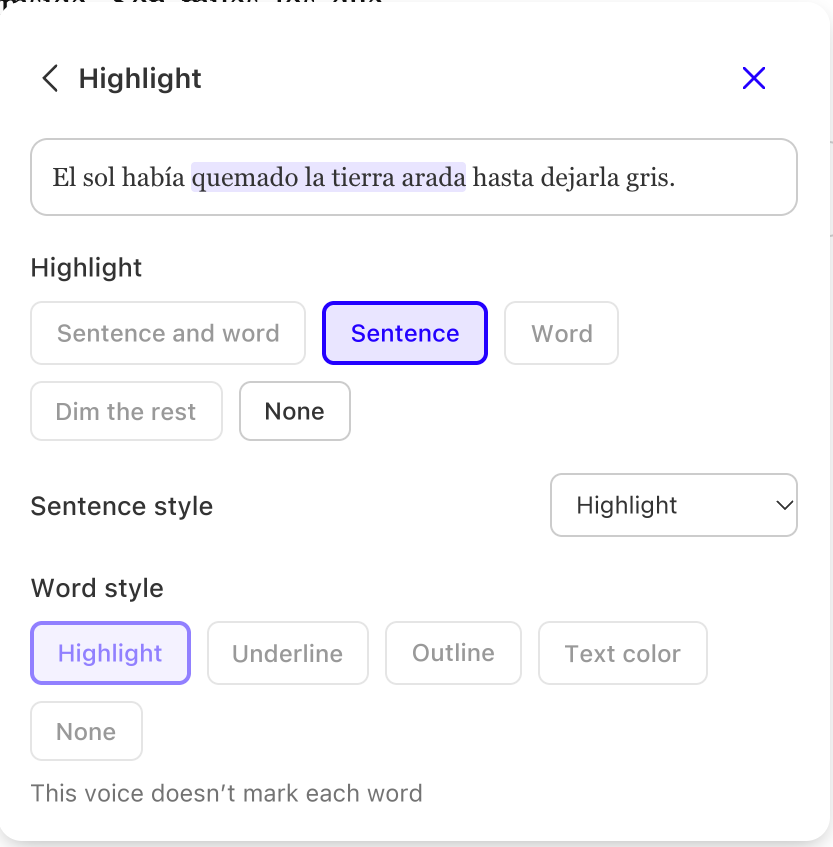
Highlight
Choose what lights up while it reads: the sentence and the word, only the sentence, only the word, or dim the rest of the text. You can also choose how the sentence and word highlight looks (highlight, underline, outline or text color).
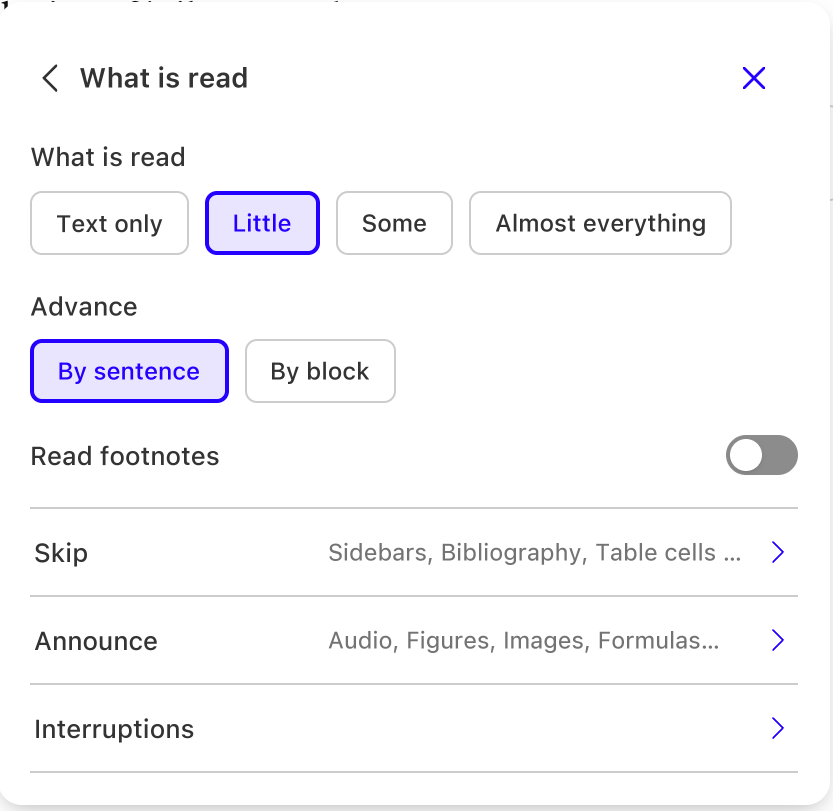
What is read
Decide how much text is read (text only, little, some or almost everything) and whether it moves by sentence or by block. You can turn on reading footnotes, choose which elements are skipped (for example boxes, bibliography or table cells) and which are announced (audio, figures, images or formulas). If an image has alt text, the reader reads it.
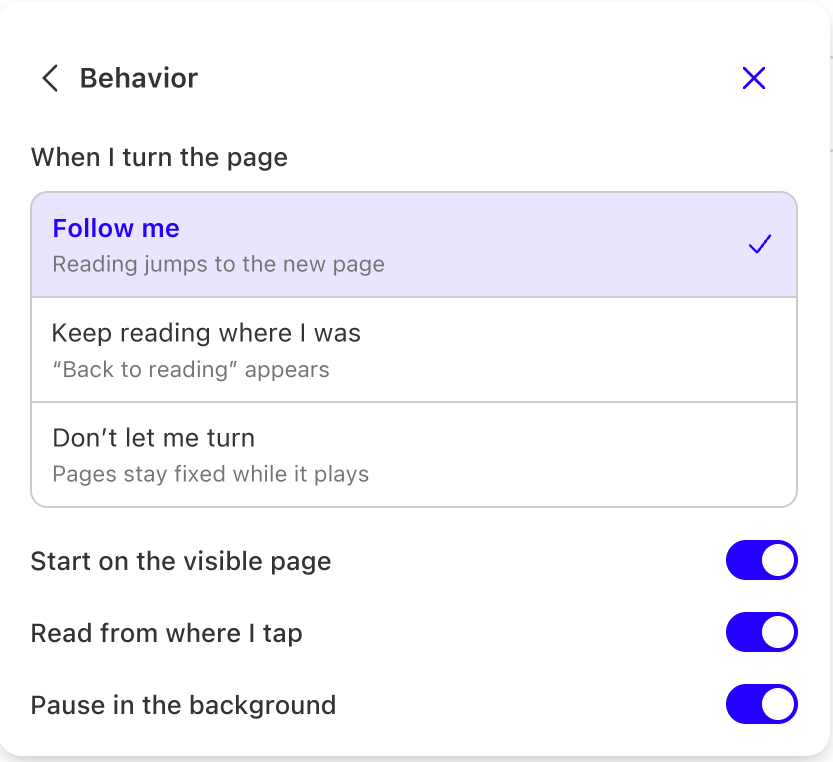
Behavior
Choose what happens when you turn the page while listening:
- Follow me: the reading jumps to the new page.
- Keep reading where I was: the reading continues in its place and a "Back to reading" button appears.
- Don't let me turn: the pages stay fixed while it plays.
You can also choose whether it starts on the visible page, whether it reads from where you tap, and whether it pauses when the tab or app goes to the background.
4. Listen to a selection, a note or an AI answer
Select some text and click the speaker icon (Listen) in the toolbar. You can also listen to a note or a highlight from Notebook and to an AI assistant answer.
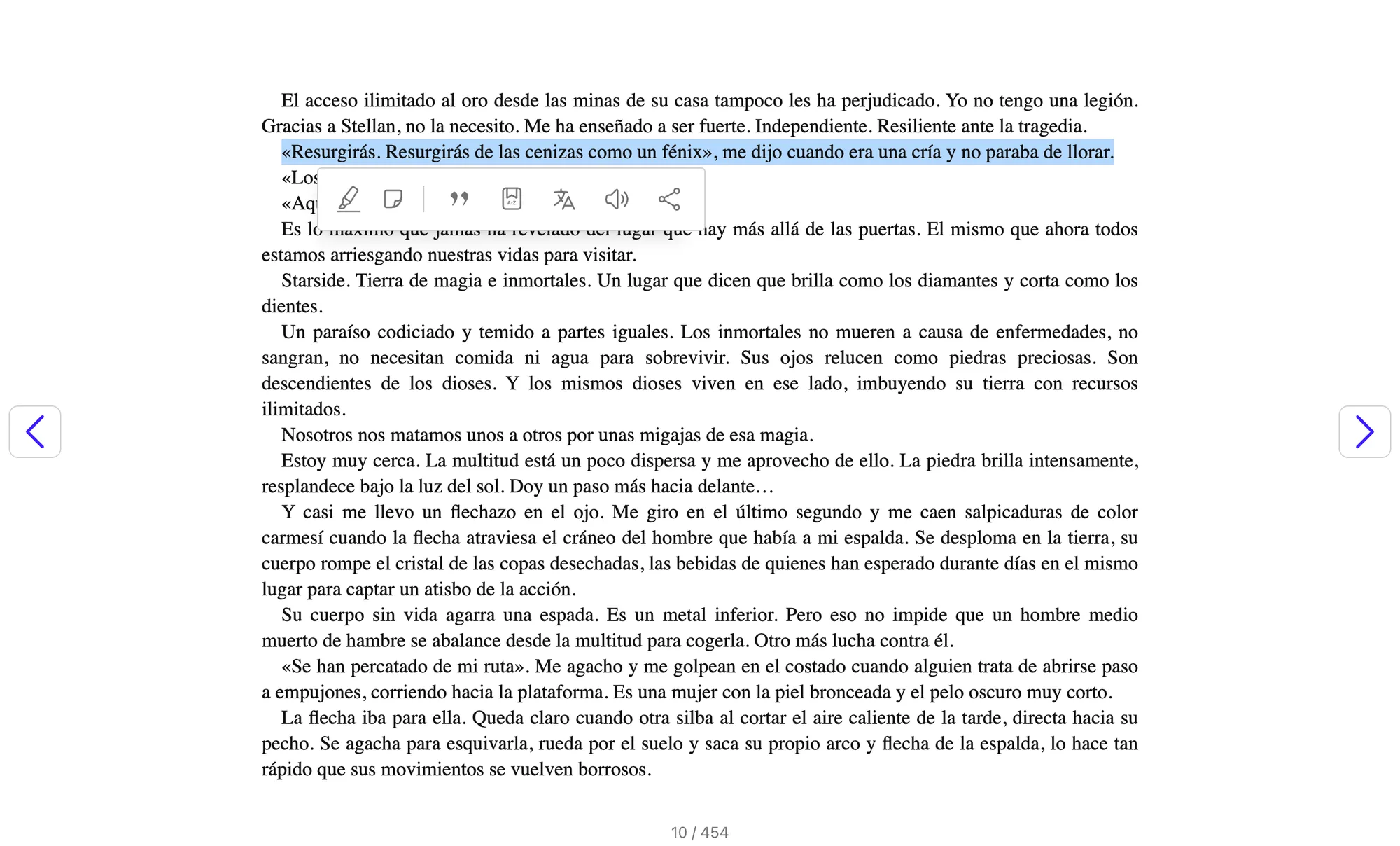
It plays in the same bar, with the voice and speed you chose. It reads only that text, with no length limit, and then stops. The book stays paused where it was. This option is not available in narrated books.
5. Narrated books (Read-Along)
Fixed-layout narrated books, such as children's books, play the publisher's recording and highlight each word as you hear it. In these books, the tool is called Narration.
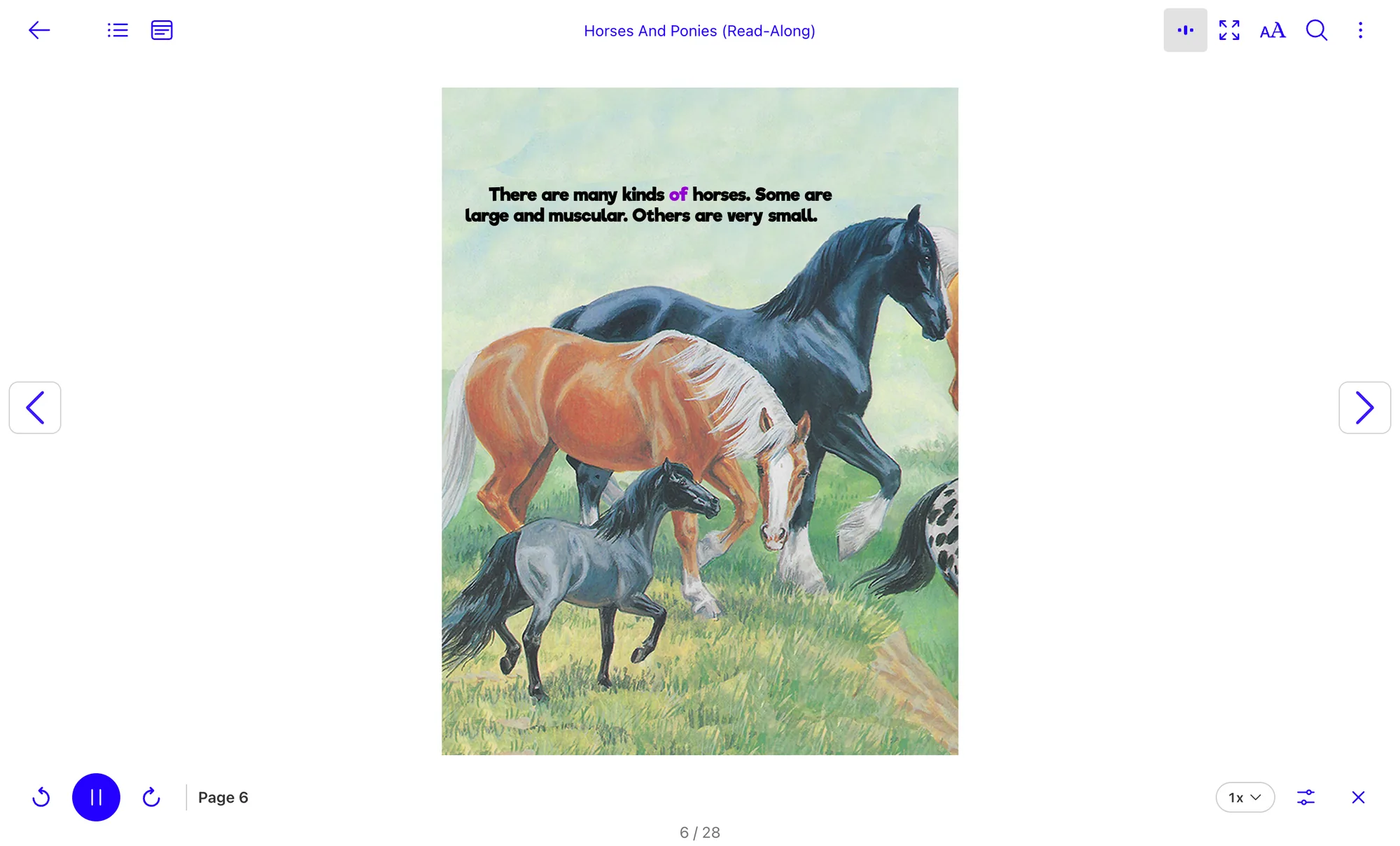
- It turns pages by itself. You can switch that off in the settings, and the narration then waits at the end of the page.
- Pages without narration stay on screen for about 3 seconds and then turn.
- If you change pages, the narration follows you. When you tap a word or a passage, it reads from there.
- You can listen at 0.75x, 1x or 1.25x. There are no voice or pitch settings, because it is a recording.
6. What to know
- Voices: depending on the store, the reader uses Amazon Polly voices or the ones built into your device or browser. With Amazon Polly voices the sentence is highlighted, not each word. Offline only device voices work. In the Android app, reading needs a connection.
- EPUB: a reflowable EPUB is read with a synthetic voice even if it has a recording.
- PDF: pages without text, such as scanned pages, are skipped. If a page has several columns, some may be read out of order. Words split by a hyphen at the end of a line are read whole.
- Not included: narrated books downloaded for offline reading in the apps, reading with the screen locked, and publication previews.
7. Frequently asked questions
I can't see the Audio tool. In EPUBs and PDFs with a synthetic voice, the store may have turned off text to speech in the reader settings. You may also be in a publication preview, which does not offer read aloud.
A narrated book doesn't play the first times I open it. The narration is prepared after the book is first opened. The reader retries on its own for a few seconds. If it still does not play on later openings, write to [email protected].
"We couldn't play the audio" appears. Try again. If you have no connection, Amazon Polly voices do not work and the reader tells you there is no connection.
Words are not highlighted one by one. You are listening to an Amazon Polly voice, which highlights the sentence. Some device voices do highlight each word.
The book has a recording, but the reader uses a synthetic voice. The book is reflowable. The recording only plays in fixed-layout EPUBs.
Helpful Resources:
We hope this tutorial has been easy for you. If you have questions, write to us at [email protected]