Print pages from a publication
In this article we will show you how to reach the reader's print tool and print pages from a publication. You will be able to choose a page range, generate a PDF, and receive it in your email to print it.
|| You will only see this tool if your store has it enabled for that publication. If you don't see it available, contact your store.
How to reach the print tool
1. Go to My library and open the publication you want to print. The reader will open.
2. In the reader's top bar, open the more options menu (three-dots icon) and select Print.
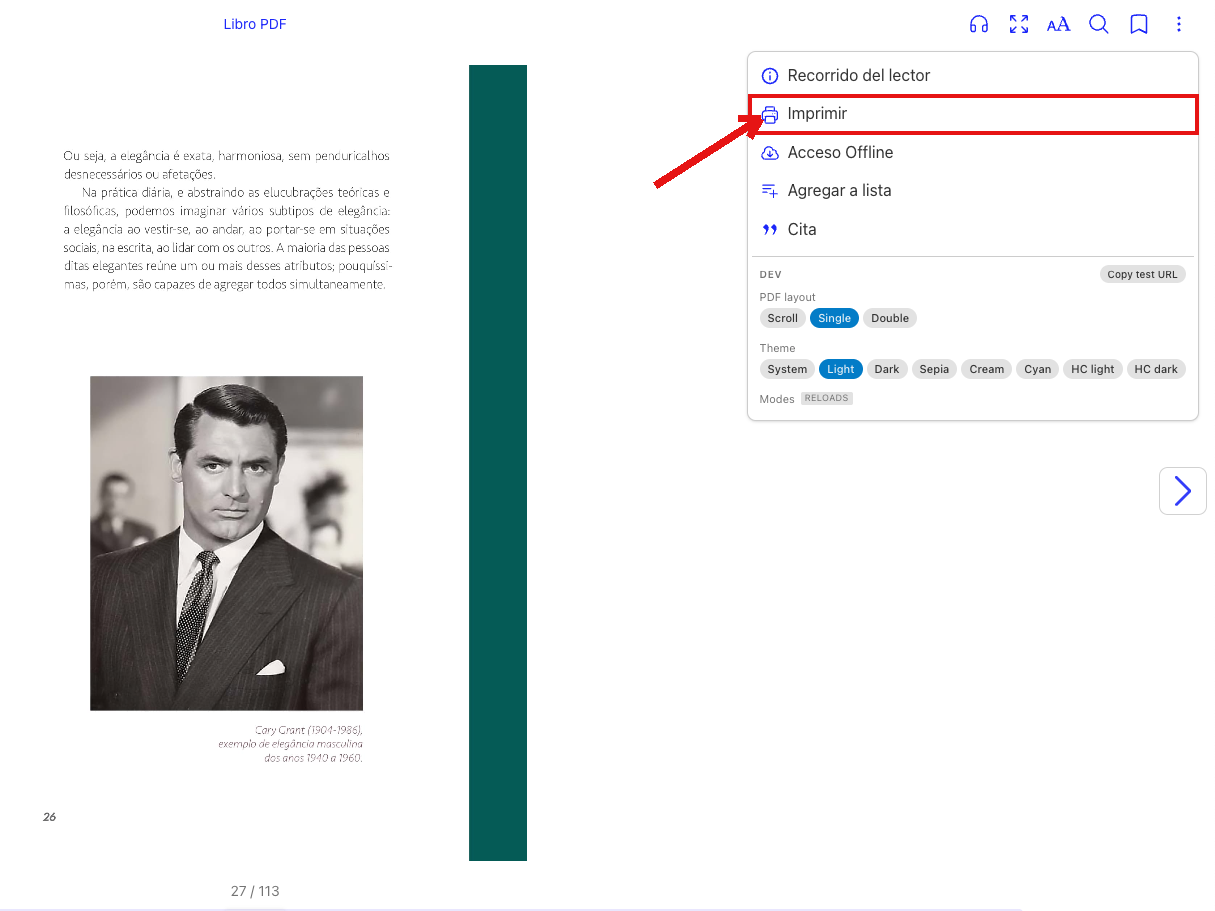
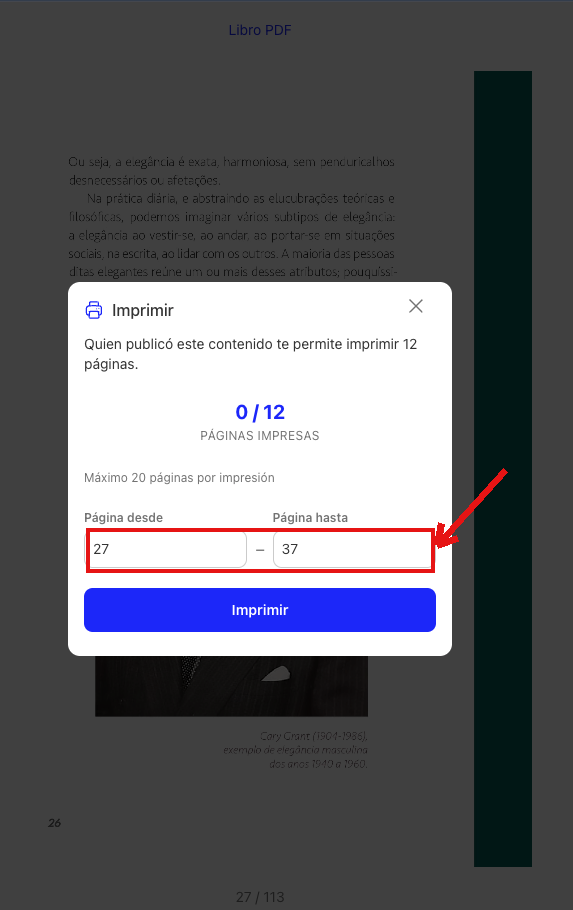
3. The print panel will open. There you will see how many pages this publication lets you print, how many you have already printed (for example, "0 / 12 pages printed"), and the maximum number of pages per print.
Print a page range
4. Fill in the from page and to page fields with the range you want to print and click Print.
|| If the range exceeds the maximum per print or the pages you have left, you will see a notice so you can adjust it. Your quota counts unique pages: if you print pages you had already printed, they are not deducted again.
5. We will start generating your PDF and you will see a message letting you know that you will receive it by email shortly.
Receive and print your PDF
6. Open the email we sent you and download the PDF from the link.
| Each page of the PDF includes a watermark with your email address. The file is for your personal use.
|| The link will be available for a limited time. If it expires, you can generate the PDF again from the reader as many times as you need, as long as your quota allows it. In the print panel you will also find the history of the ranges you have already printed, so you can generate them again whenever you need (this does not deduct from your quota).
We hope this tutorial has been easy for you. If you have questions, write to us at [email protected].