Search Text In A Publication
The reader includes a search tool that lets you find any term, passage, or name inside a publication without browsing page by page.
|| This feature is only available for publications in PDF and EPUB format. It's not available for audiobooks or when you're offline.
How to search
1. Click the magnifying glass icon in the top bar of the reader.

2. Type the term you want to find. The minimum is 4 characters.
3. The results appear in a list with context snippets and the term highlighted. In PDF publications, results are grouped by page number.
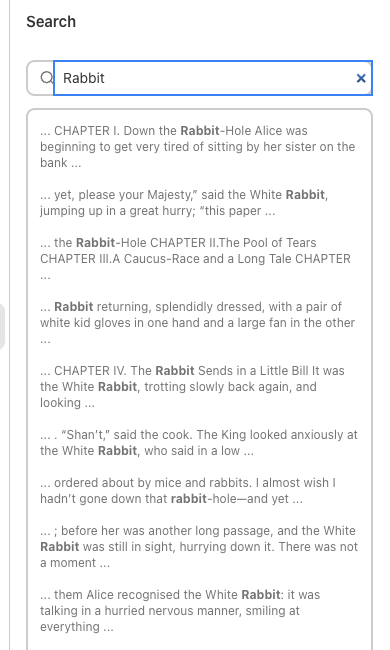
4. Click any result to jump directly to that page or chapter. Matching words will be highlighted in green in the document.
|| The search panel closes automatically when you navigate to a result. The search highlights disappear when you close the panel.
Search history
The reader saves your last 5 searches on the device. When the text field is empty, you'll see the history. Click any entry to repeat that search without typing it again.
|| The history is stored in the browser. If you clear your browser data, the history is deleted and it doesn't sync between devices.
Keyboard shortcuts
| Action | Keys |
|---|---|
| Open search | Ctrl + F / Cmd + F |
| Next result | ↓ |
| Previous result | ↑ |
| Go to result | Enter |
| Close the panel | Escape |
We hope this article was helpful. If you have questions, write to us at [email protected].