Flashcards: study with cards from the reader
Flashcards are study cards you can create directly from the reader, from text you select in the publication or manually. They are organized by colors — the same ones you use for your highlights and notes — and you can review them in a dedicated study mode without leaving the reader.
|| To use them, the store must have the feature enabled. If you don't see them available, contact your store.
In this article:
1. How to create a flashcard
You can create flashcards in two ways:
From a text selection
1. Select the text you want to use as the base of the card.
2. In the tools menu that appears, click the Flashcards button (graduation cap icon).
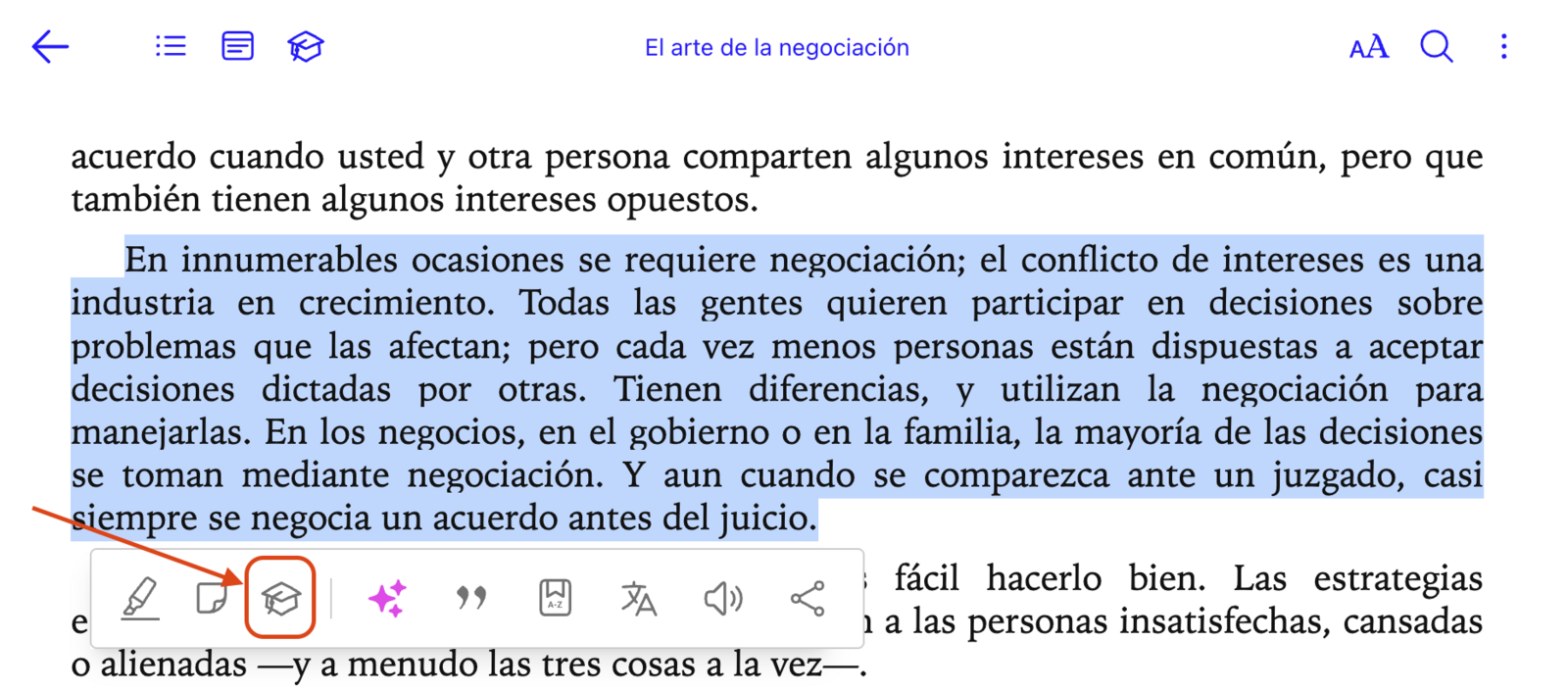
3. A window will open where you can finish setting up the card.
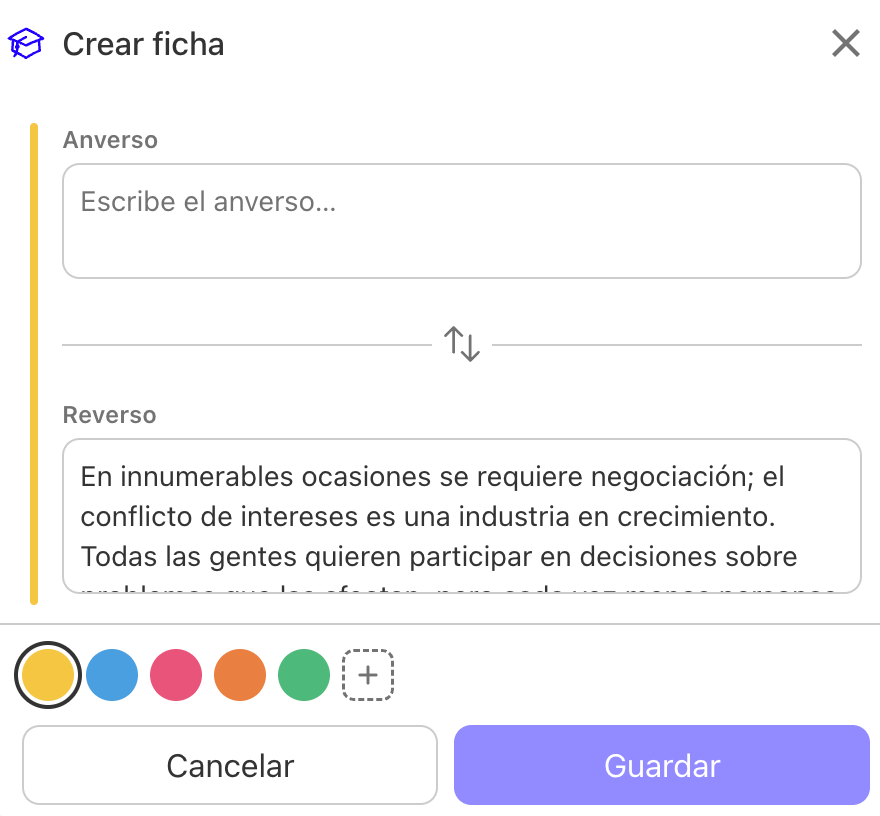
You'll see the selected text already loaded as the back of the card. Write the front (the question or clue), adjust the back if needed, and choose a color.
4. Save. The card will be anchored to the position of the text in the publication.
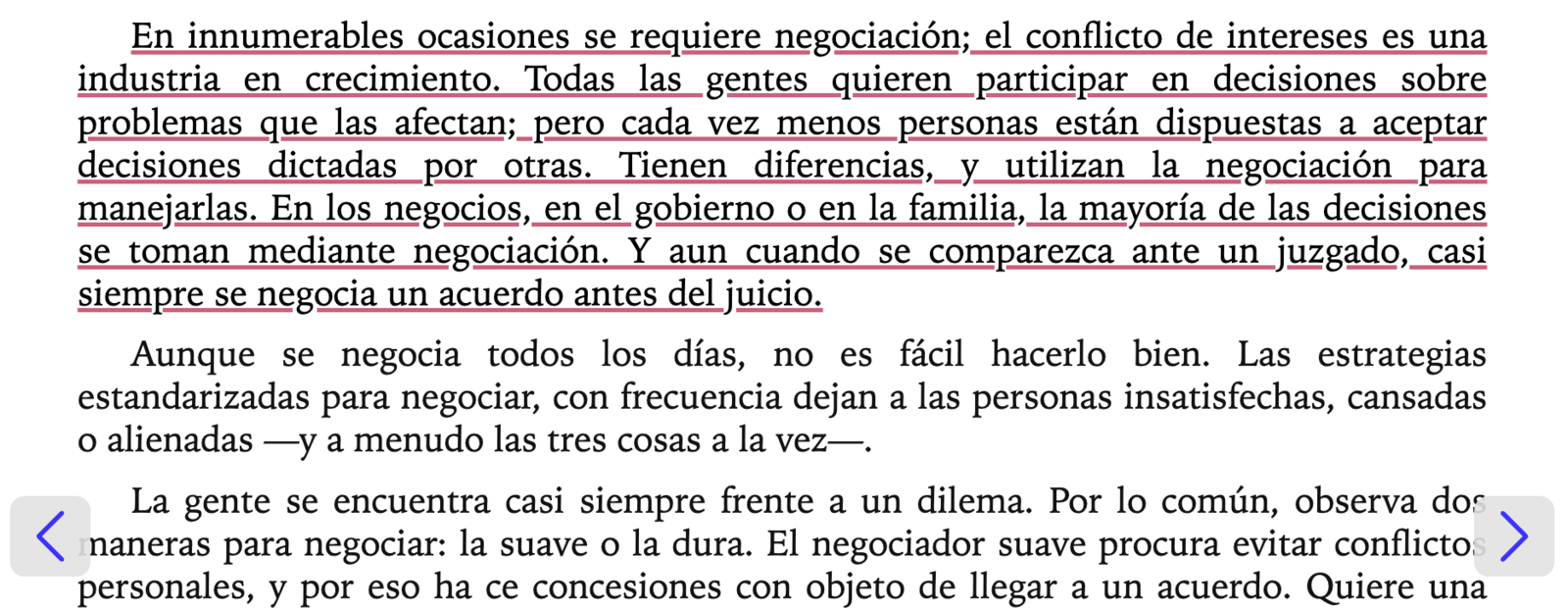 You can identify sections used for flashcards as underlined text in the body of the publication.
From the Notebook
1. Open the Notebook and select the Flashcards tab.

2. Click the + New card button to add a new card.
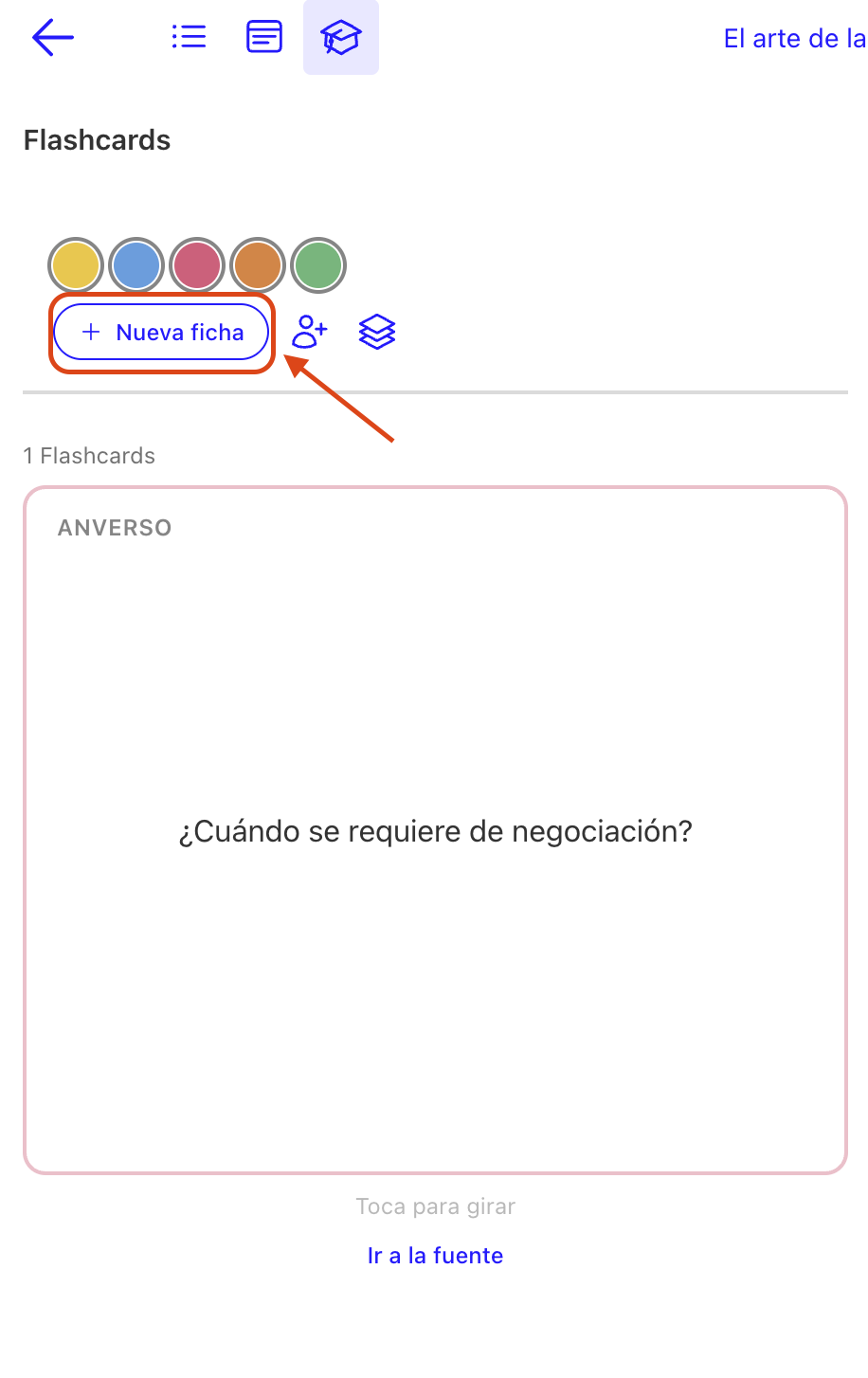
3. Fill in the front and back manually and choose a color.
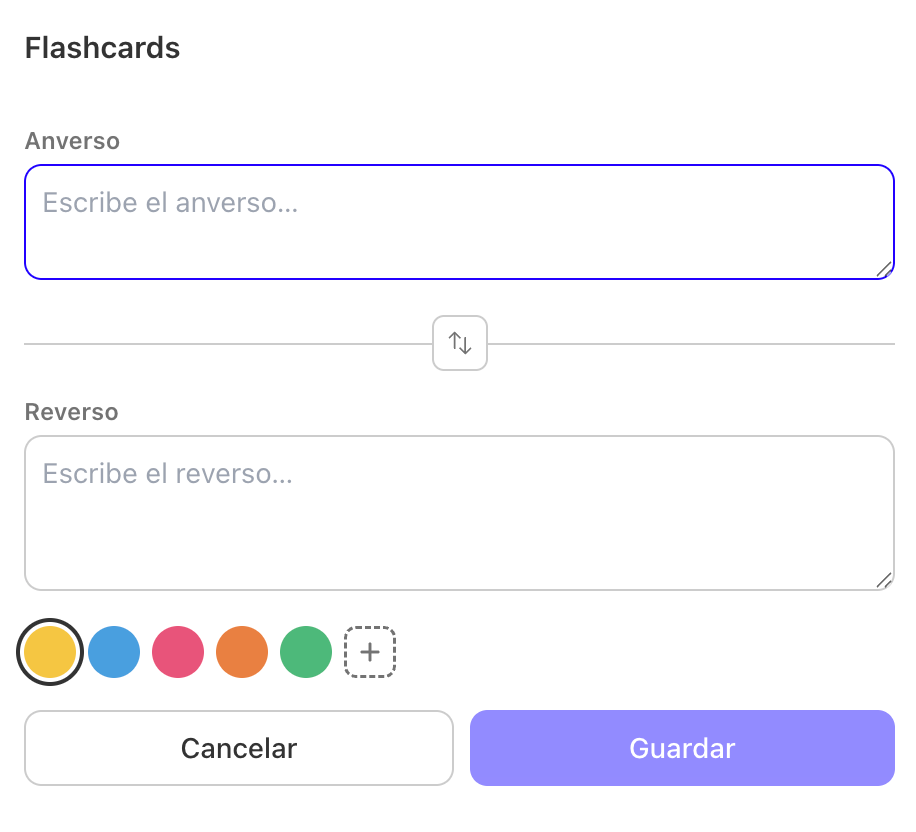
4. Click Save.
|| The front of flashcards supports up to 500 characters. The back of flashcards supports up to 1000 characters.
2. Manage your flashcards
The Flashcards tab groups all your study cards for the current publication. There you can perform the following actions:
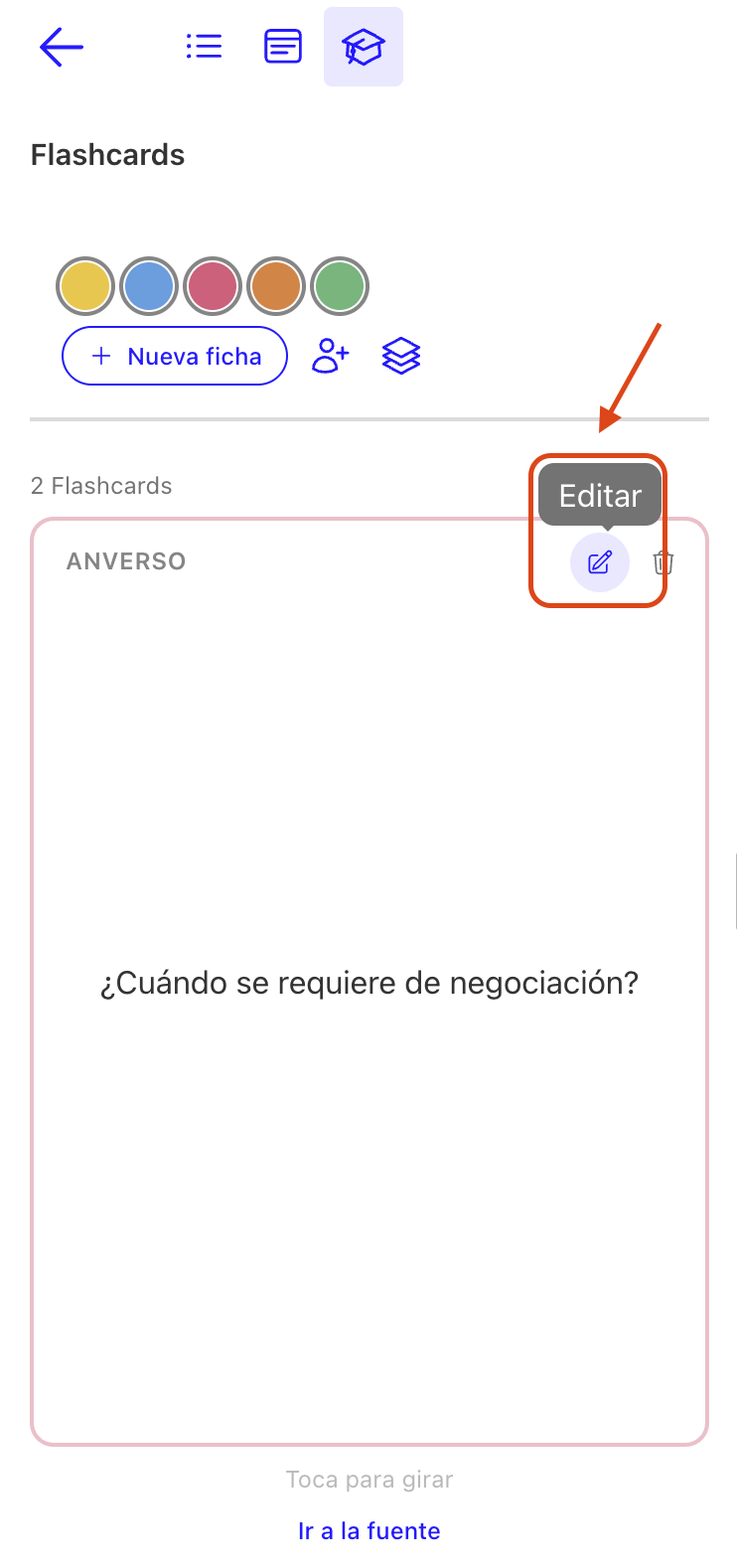
- Edit: Modify the text or color of any card. The flashcard creation modal will open again.
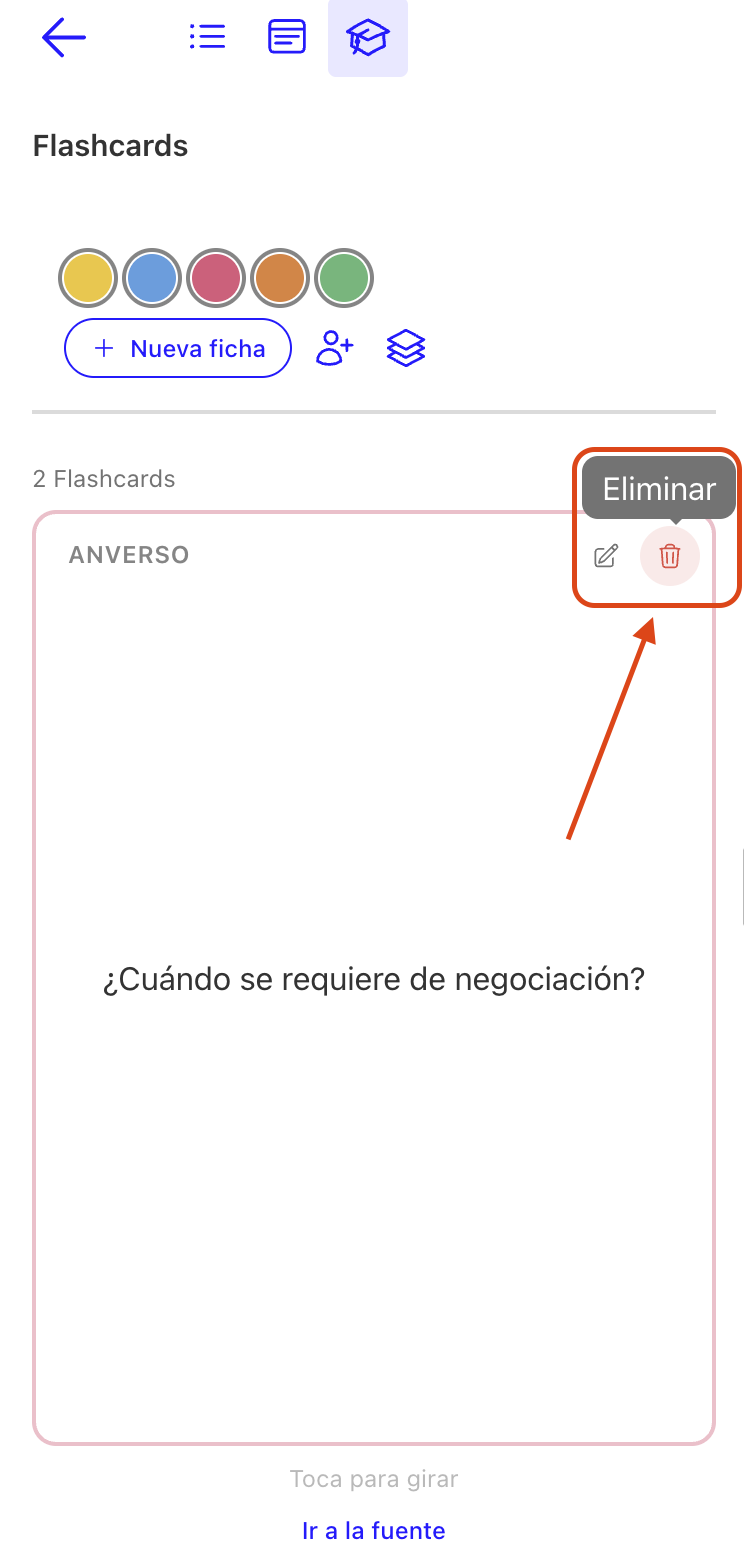
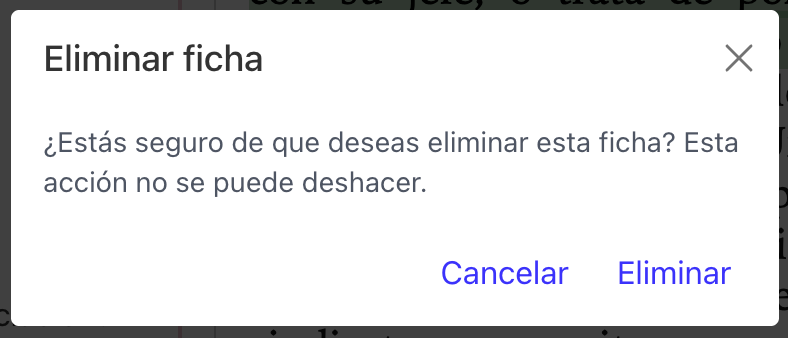
- Delete: Remove the card (you'll be asked to confirm).
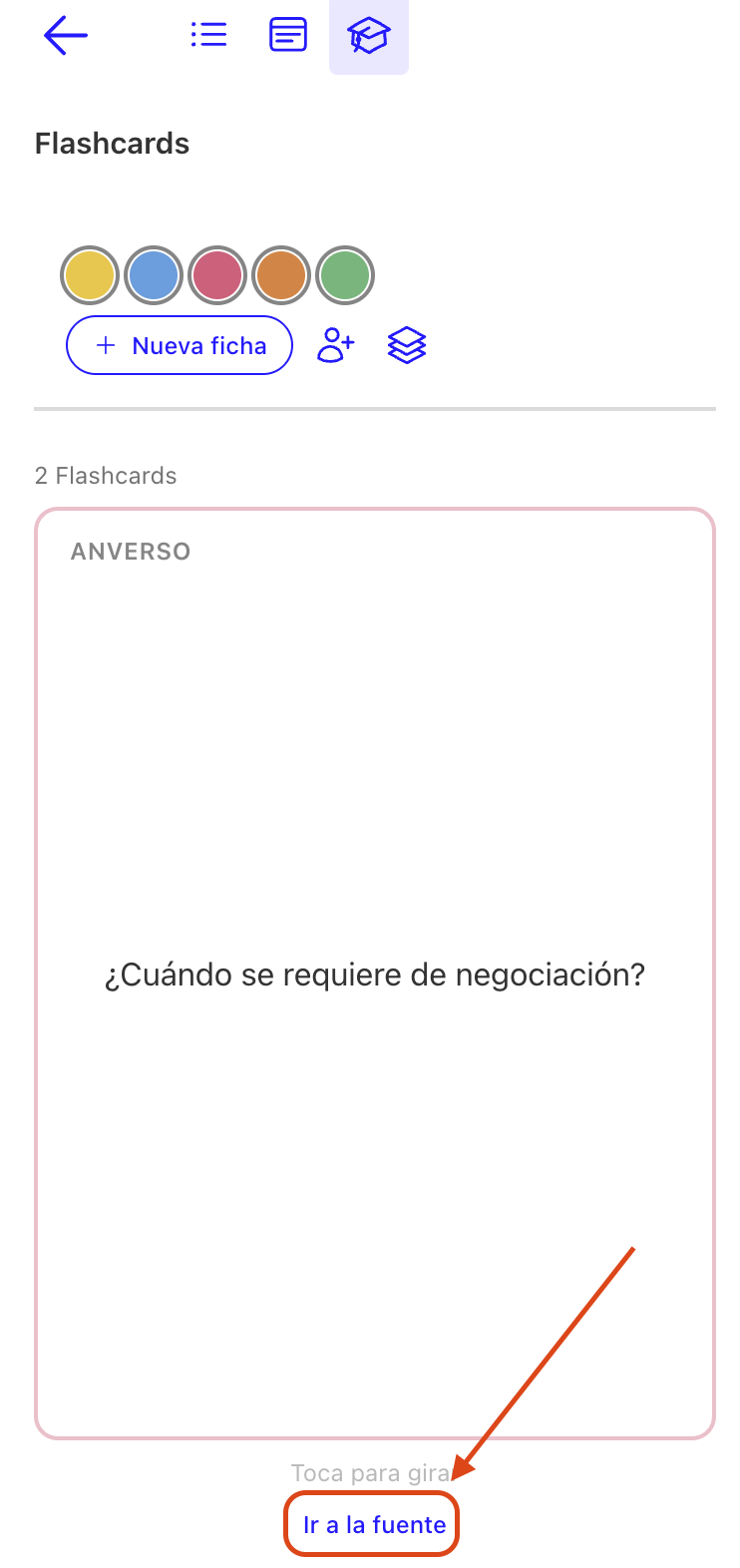
- Go to source: Cards created from a text selection have a link that takes you directly to the passage in the publication where you created them.
-
Flip card: Click on a card to flip it and see both front and back.
-
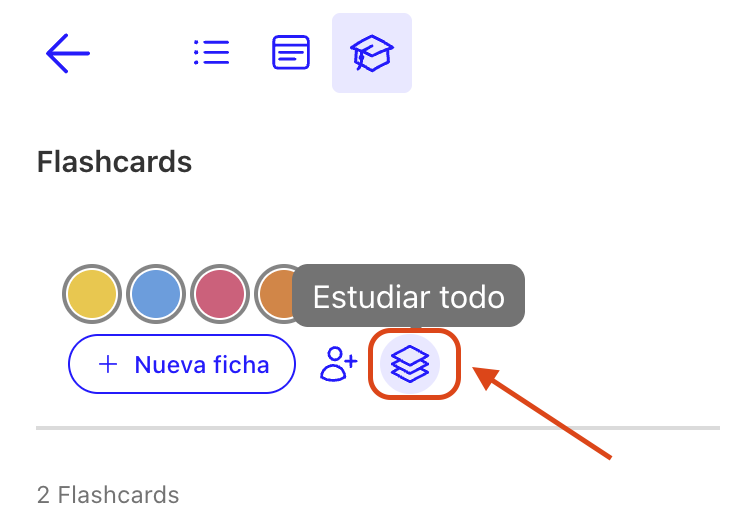
Study all: Start a study session with all flashcards (covered in more detail in the next section).
3. Study mode
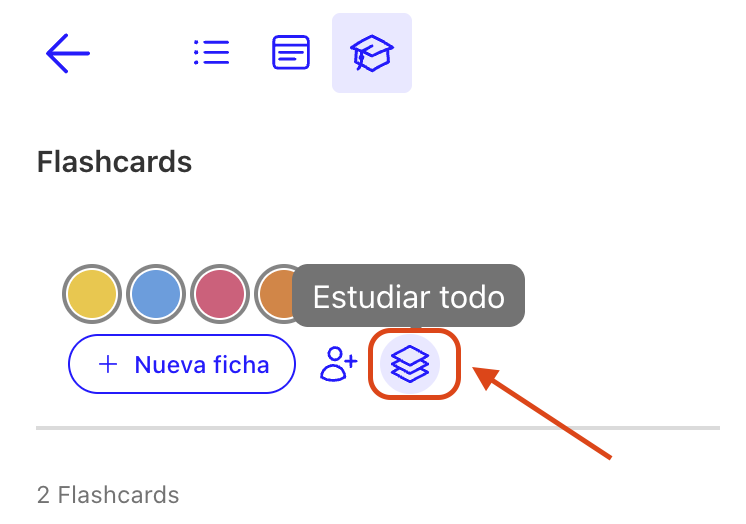
From the Flashcards tab you can start a study session by clicking the Study all button.
During the session:
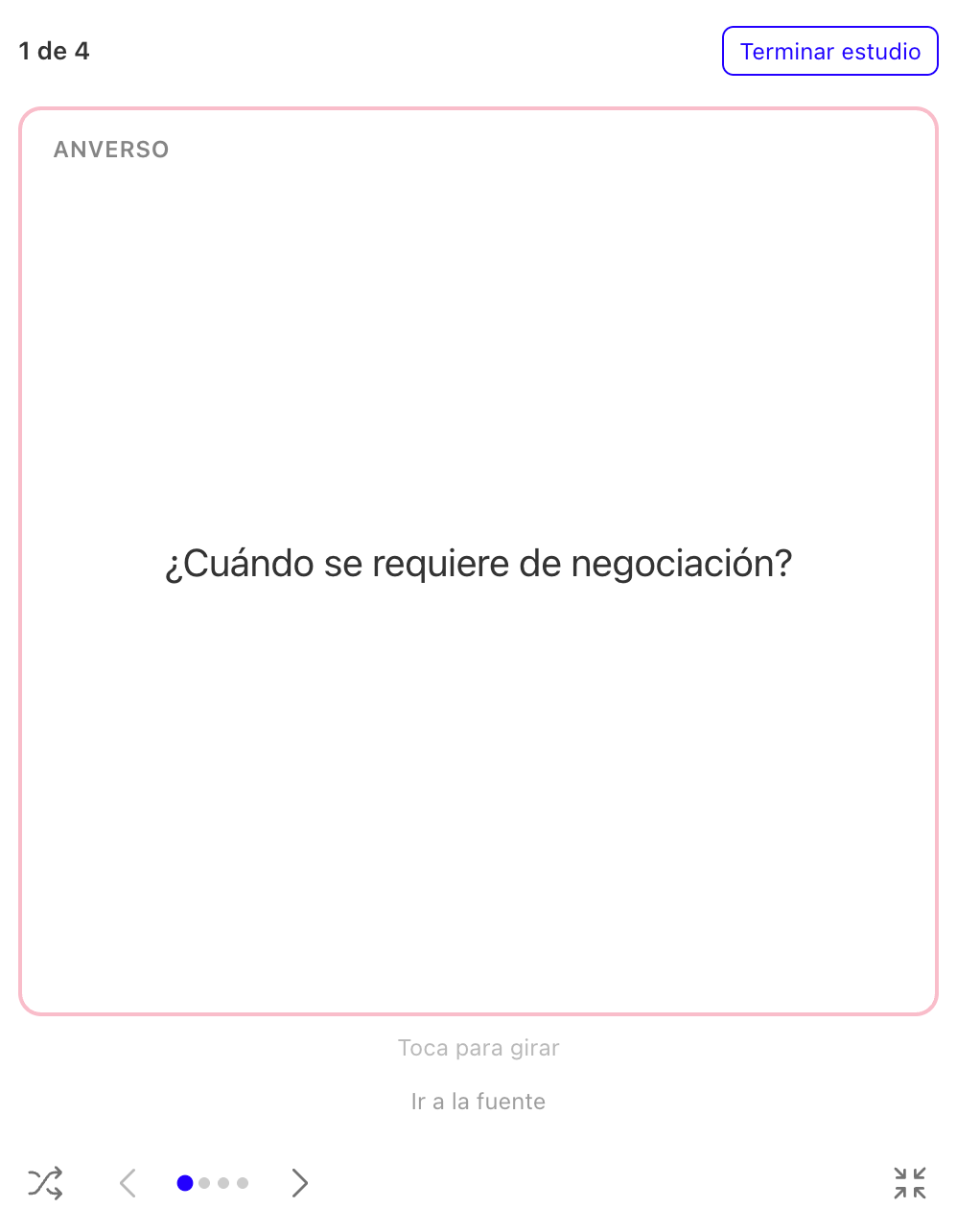
- One card at a time is shown, with the front facing up.
- Click or tap the card to flip it and see the back.
- Use the previous and next controls to move between cards.

- A progress indicator shows your position in the session (e.g., "3 of 12").

- You can shuffle the cards to review them in random order.

- Select Full screen mode to study without seeing the text.

4. Self-assessment
After flipping each card, you can mark it as I know it or I don't know it.
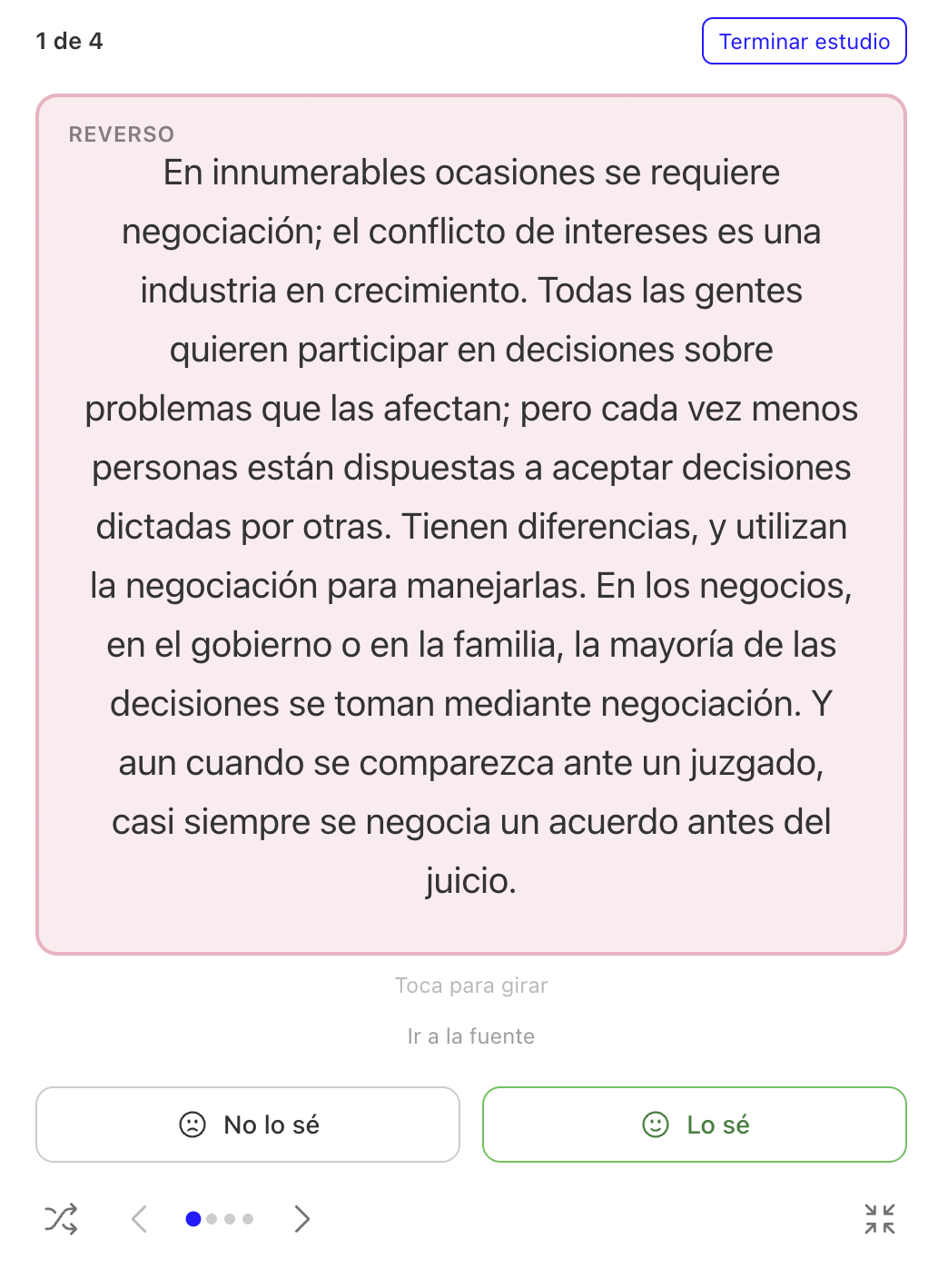
- Progress dots turn green (I know it) or red (I don't know it).

- Marking a card as I know it or I don't know it automatically advances to the next one.
- You can go back to review cards during a session.
- At the end of the session you'll see your result: how many you knew out of the total.
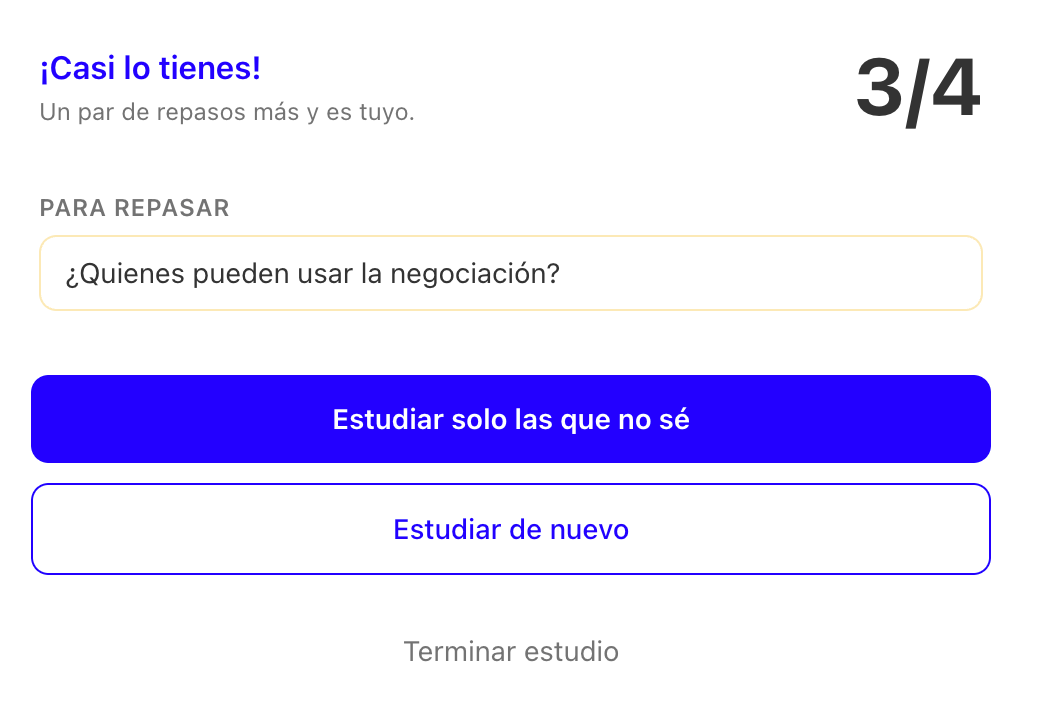
- You can select Study again to restart the full session, Study only the ones I don't know to review only those marked as "I don't know it", or End study to finish the session.
|| Self-assessment results are per session and are not saved. They reset when you exit study mode.
5. Share flashcards
Flashcards are part of the same color-sharing system as highlights and notes. If you share a color from a publication with another reader, that reader will also see the flashcards of that color along with your highlights and notes.
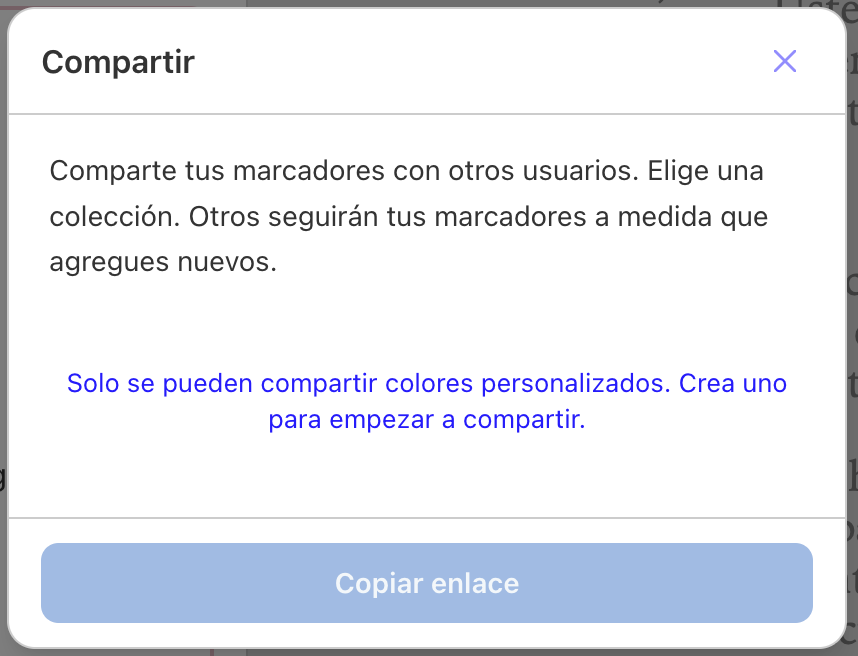
→ Share your highlights with other readers
We hope this article is helpful. If you have any questions, reach out at [email protected].