Welcome to publica.la!
In this article we will take a tour of the initial settings and adjustments you can make on the platform.
⚠️If you have not created your store yet, you can do it in less than a minute by going to publica.la. We share here our help article where we show you how to do it.
If you have already created your store, log in with your administrator account and stay on the main section. We will go step by step through each section of the platform so you can gradually get familiar with it.
Remember that we are always a click away from you through the Chat button available in the Control Panel, or you can contact us by email at [email protected]
For now you will not see much in your store, but with this guide you will be able to customize the settings to your liking and load your publications so it looks great. Here we go!
This is the main section of your store, which your reader users will have access to:
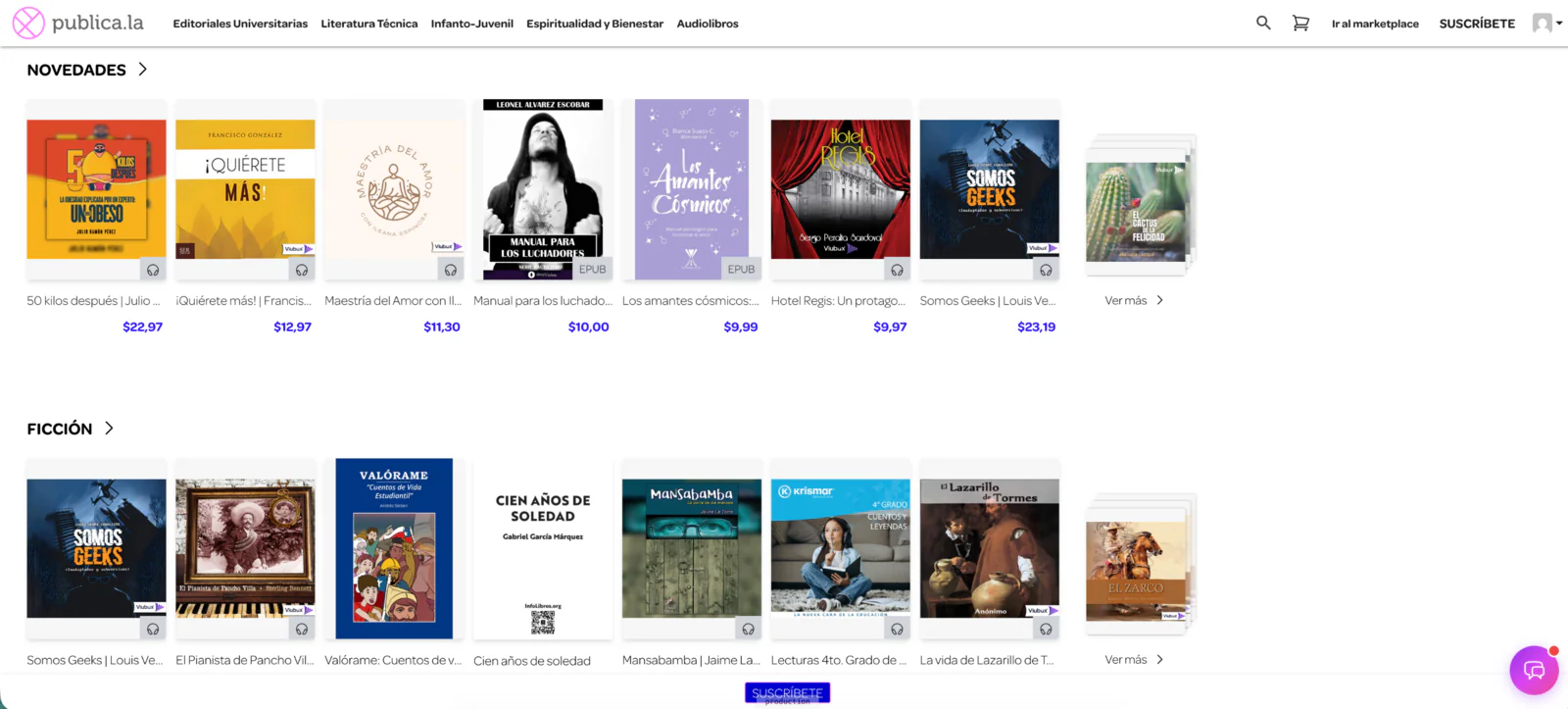
In the address bar you will see the domain of your store followed by /library

In the upper right corner of the navigation bar you will see some icons, among them a magnifying glass (search for publications by author, title or keywords) and a user icon with an arrow pointing down.

Let's look at the options you have as an administrator when you click on the dropdown menu:
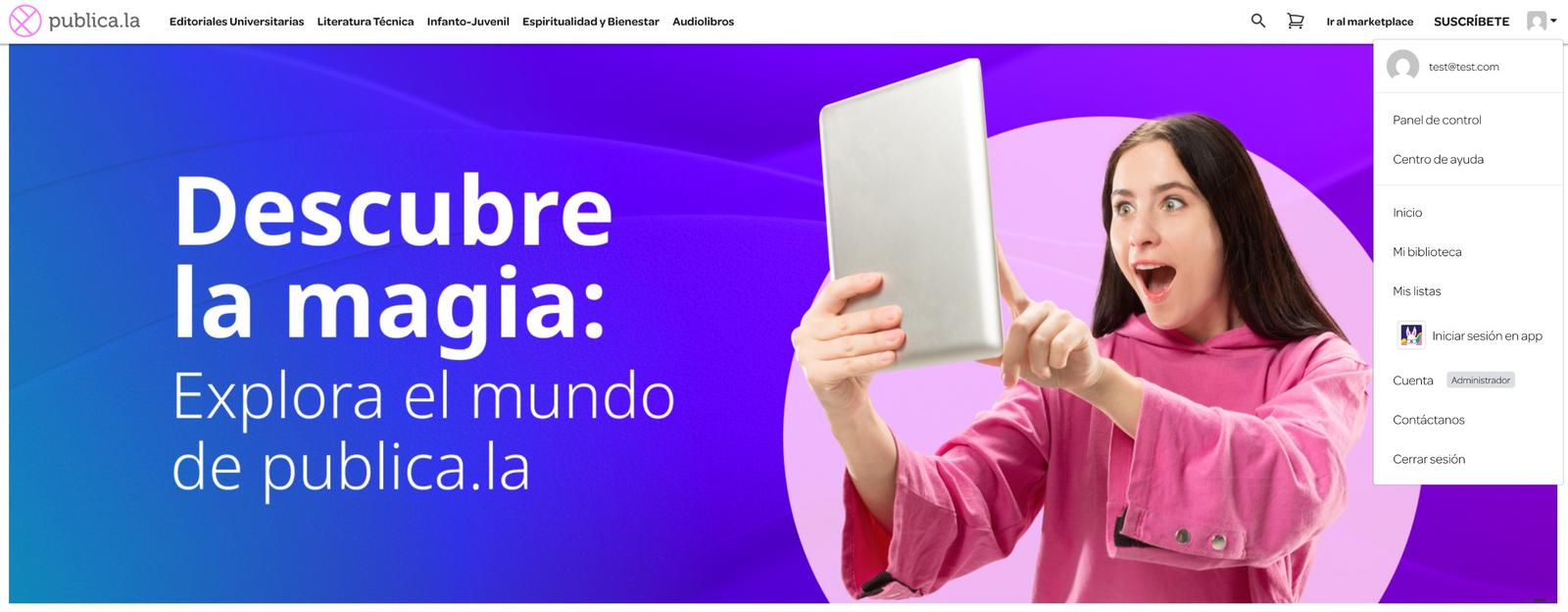
Your users will have different options, which we will cover in another article.
Click on Control Panel:
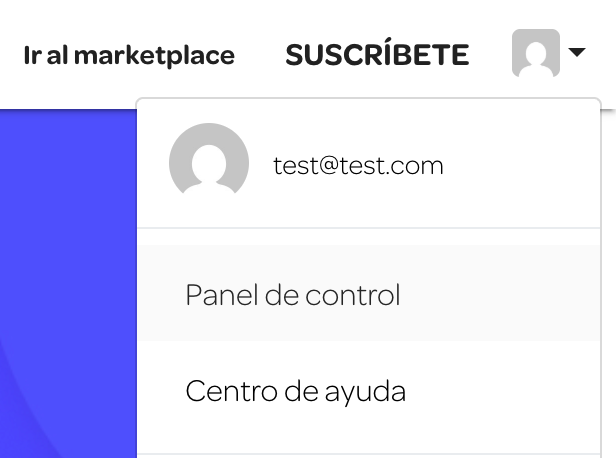
We will go through each section of the panel:

SECTIONS:
1. Control Panel
To see the different options this tool has, click on Control Panel from the dropdown menu. Once there, by default you will be in the home section of the panel. From now on we will go through each of the sections to explain in depth everything you can do in them.
In each section you have step-by-step guide tutorials on how to use each function, and you will also have our support to clear up any question.
Keep in mind that some of the features mentioned below may or may not be available depending on your plan. For more information about this, you can ask your sales agent or write to us at [email protected]
1.1 Home
On the left you have the following links:
- Subscription status: In this section you will be able to see what your subscription (or plan) includes, and its status and details.
We recommend that when you have difficulty or doubts about how to do something, you do not hesitate to check our Help Center first, using keywords or browsing through the categories on the topic you need. Of course, if you do not find the answer there, we will be available to you through the chat or the support email.
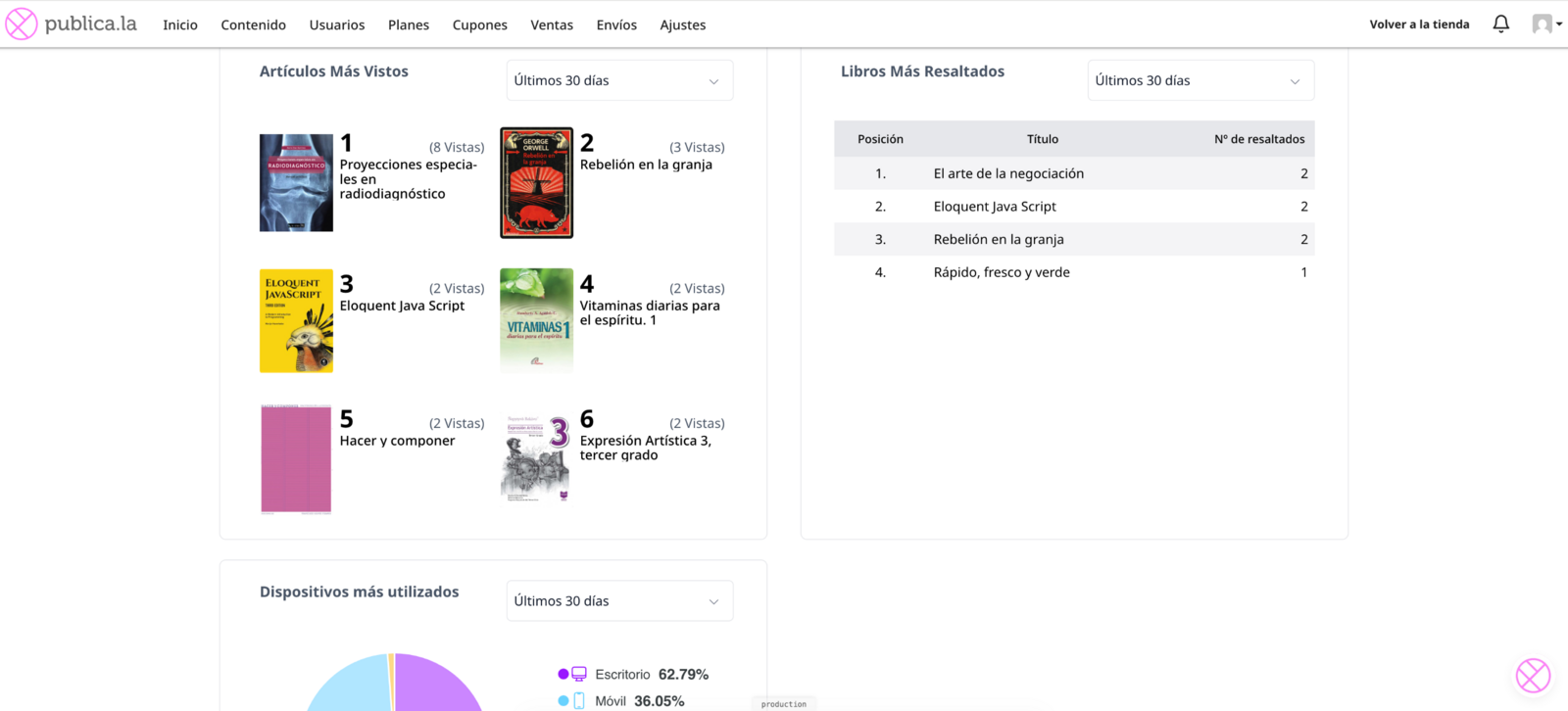
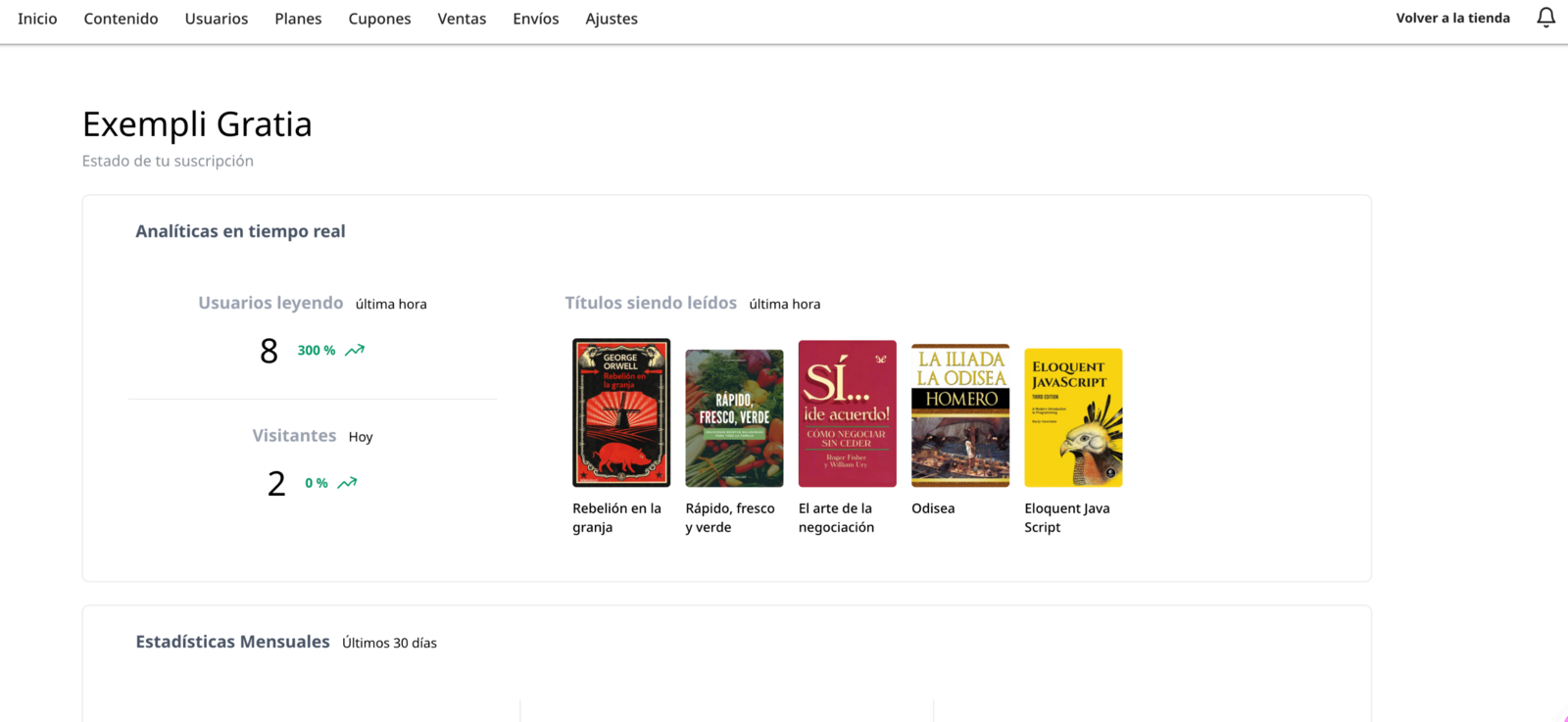
You will find several real-time performance measurements of your store.
- Real-time analytics: there you will see the number of users who have accessed your store in the last hour, the number of users who have visited your store during the day, and the latest titles that have been read in your store.
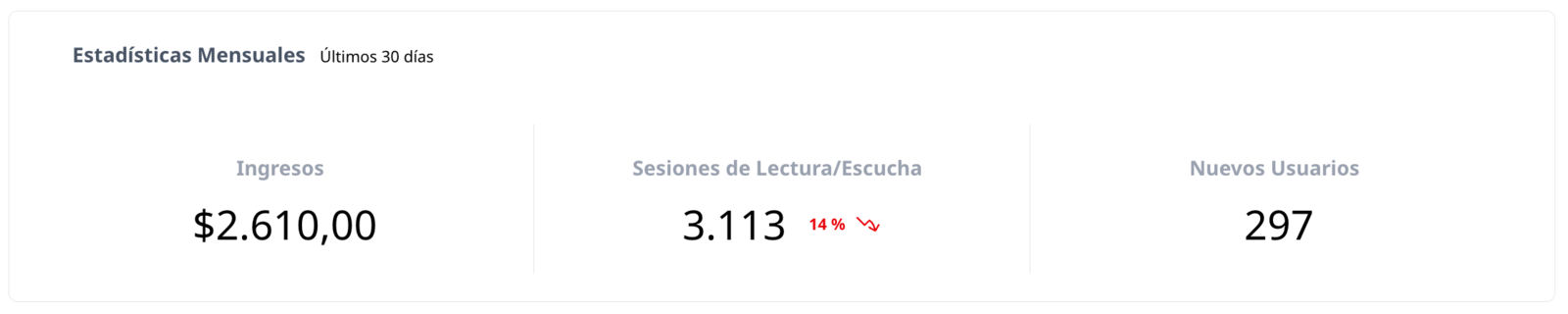
- Monthly statistics: a general overview of the store for the last 30 days that lets you see at a glance your income, reading sessions and the number of new users.
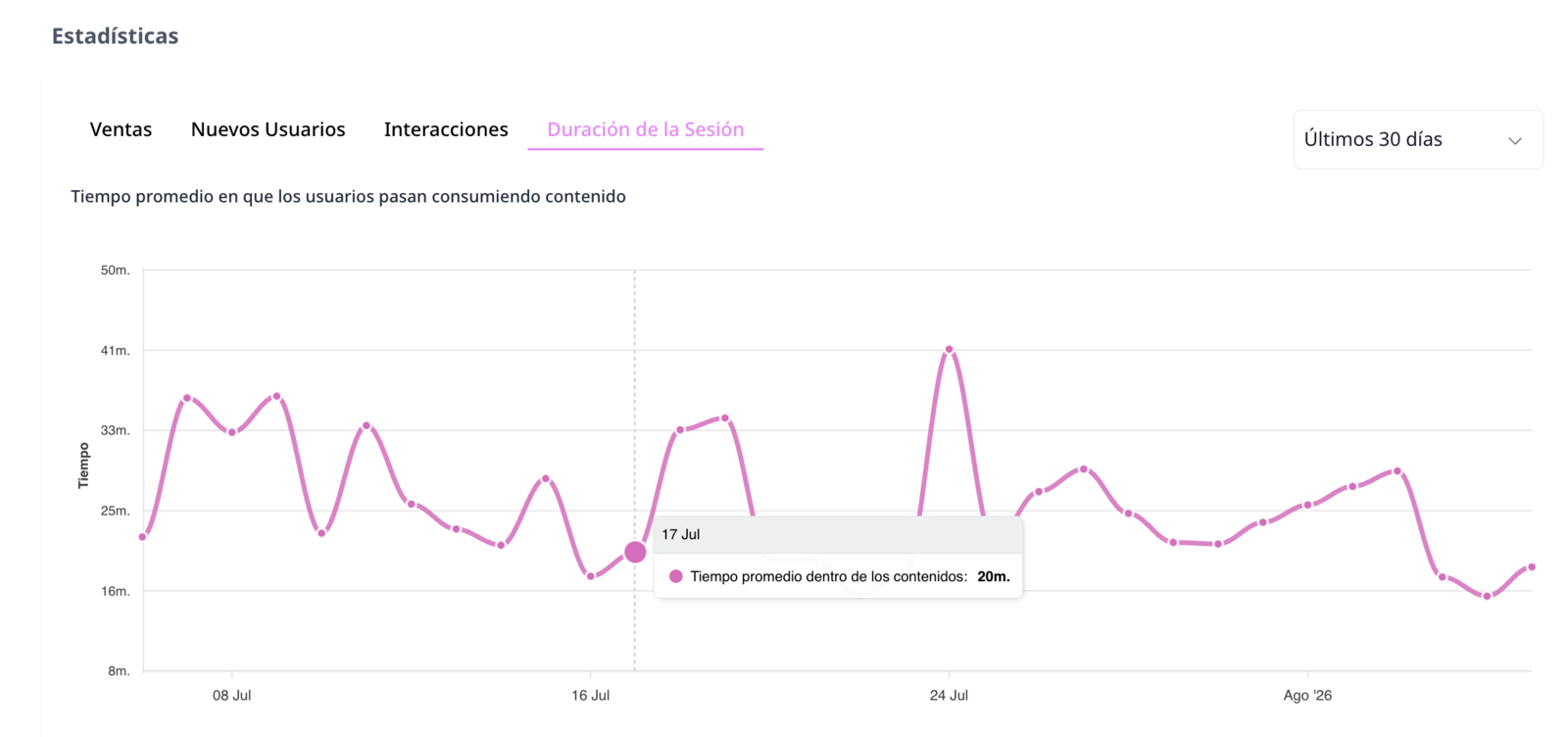
- Statistics: in this box you will be able to see, in a very practical way, different meters (sales, new users, interactions, duration of reading sessions) over variable periods of time.
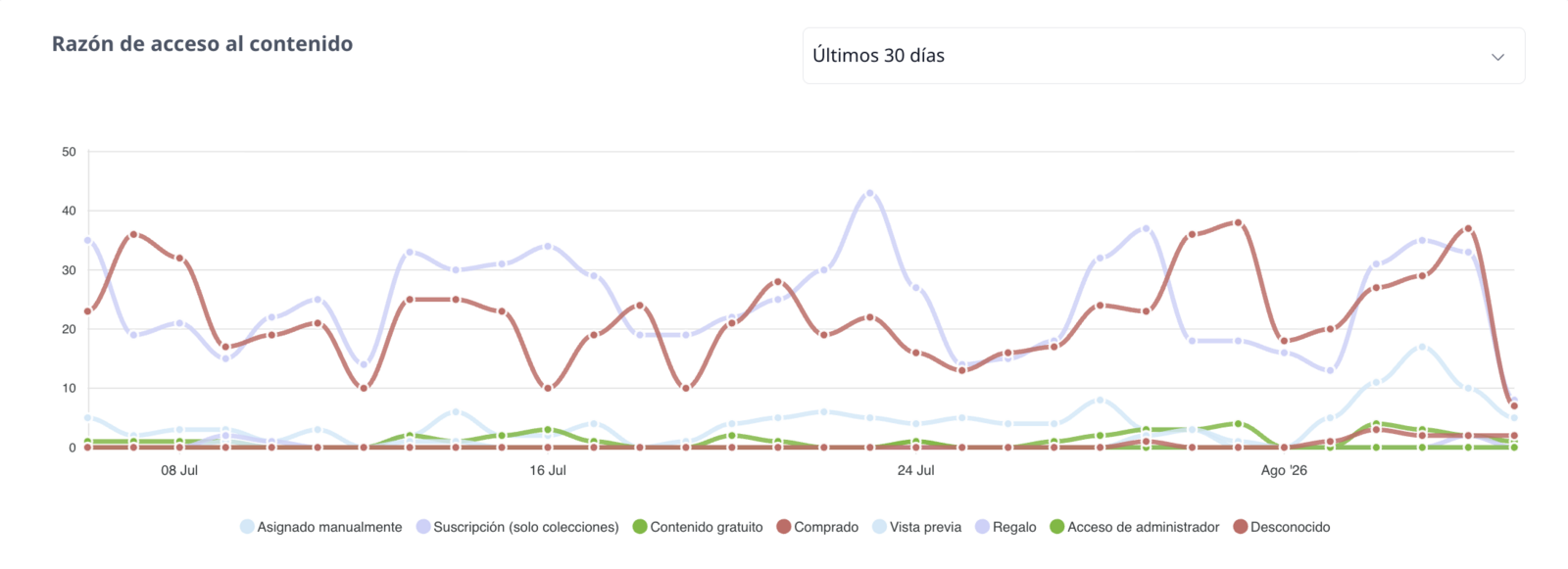
- Reason for content access: with this chart you can complement the information in the previous box for a deeper look at who has accessed your content and why.
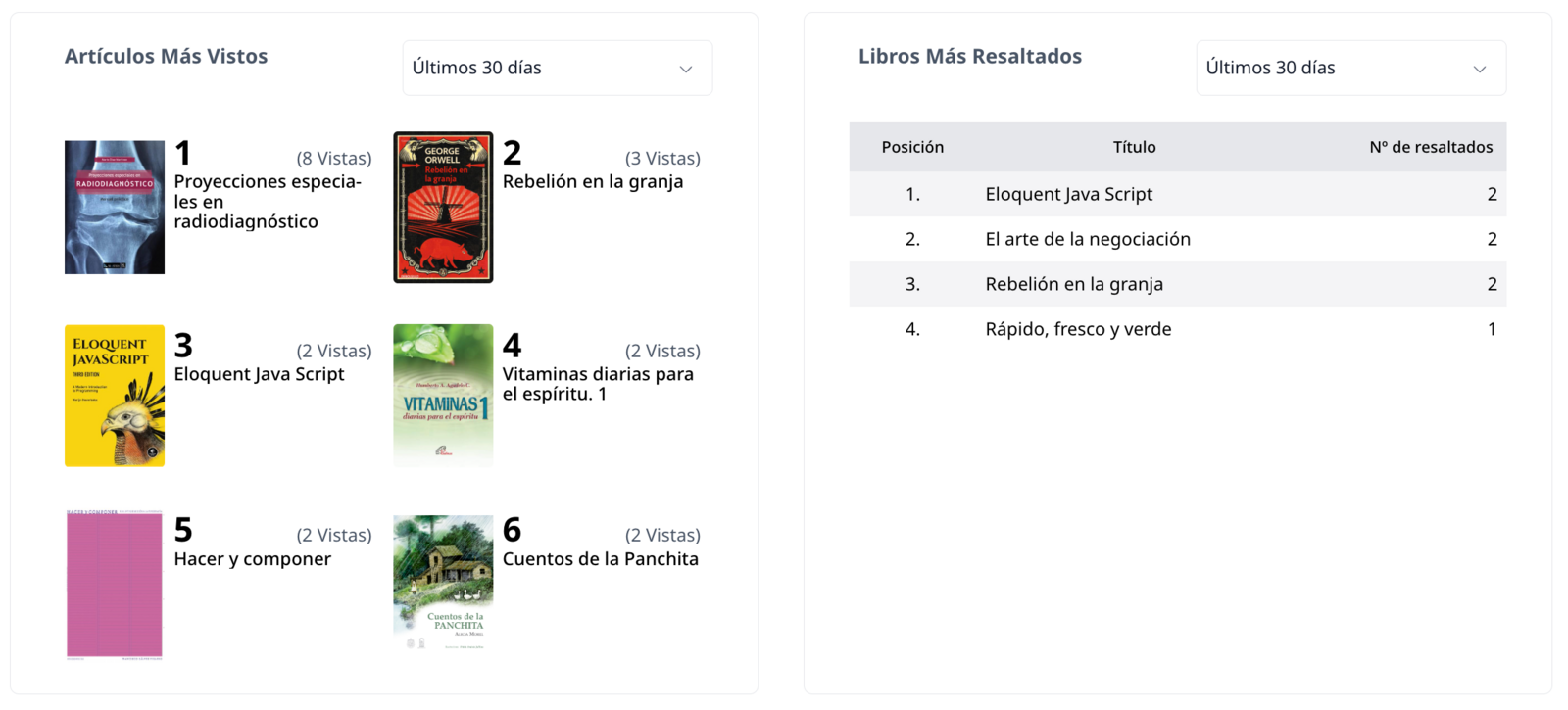
- Most viewed items: toward the end, you will find a handy box that lets you identify which products generate the most interest among your audience.
- Most highlighted books: here you will see which content your users interact with the most.
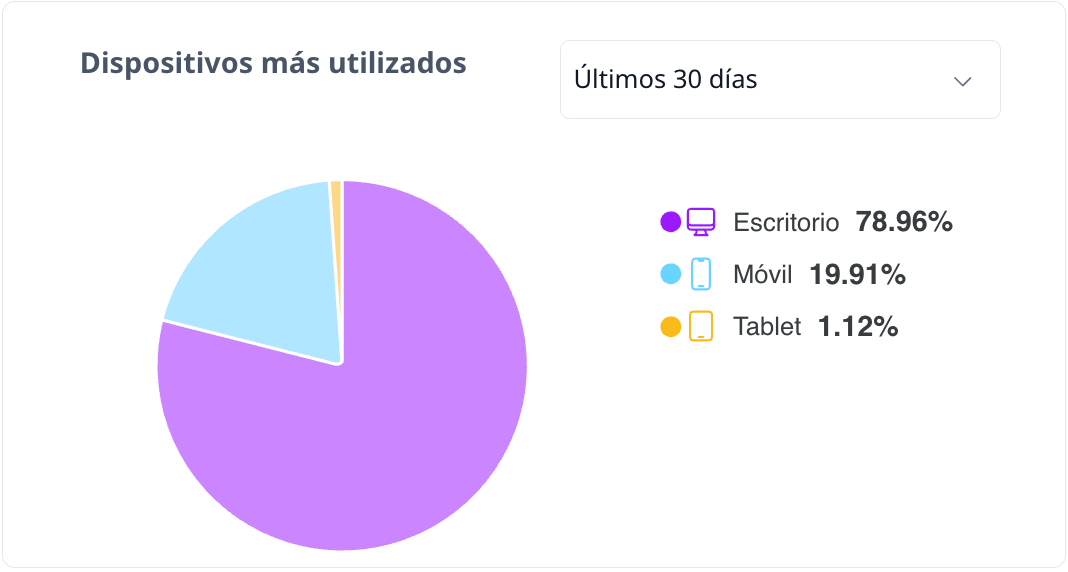
- Most used devices: where you will see the access methods from different devices preferred by your users.
1.2 Publications or content
This difference will depend on whether you have our Marketplace enabled. Learn more about Bookstore here.
In this section you will be able to:
- Upload a new publication
- Add content from the Marketplace (Bookstore)
- Update publications
- Search publications
- Edit publications
- Withdraw and reactivate publications for sale
- Get an individual URL for publications
- Generate a QR code for publications
- Create add-ons
- View reading statistics per publication
- Export the list of your publications
1.3 Users
Here you will see a list of all the users who have registered in your store. You will see both those who have bought and those who have not yet. You will also be able to see the purchases made by each user and their reading statistics.
In this section you will be able to:
- Create users manually.
- View general and individual reading statistics.
- Export the list of users
- Edit users
- Add administrator users
- Reset the password of a user who has lost access
- Access the view as user
- Assign and revoke publications
- Assign IP or URL ranges (for integrations, depending on your plan)
1.4 Plans
From here you will be able to create and manage the plans you want to offer in your store, as well as export the list of them.
In this section you will be able to:
1.5 Coupons
Do you want to assign coupons to publications, plans or users? Have you launched a new publication and want to offer a discount to a certain number of users? You can do it in this section. Check here the article we created for you and set your sales strategies in motion.
If you need to create coupons in bulk with different prefixes (more than 30) you can send us an email so that we do it for you. Remember to place your request in advance.
You will be able to set the discount percentage depending on the type of plan you have.
1.6 Analytics
From here you will be able to see the statistics that will help you plan marketing strategies, find out where your users are from, the average reading time and more. In this article we tell you a little more about how to read these statistics.
In our help center you can learn more about all the statistics we provide. We hope they are useful and help you boost your sales.
1.7 Sales
Learn about the movement of the transactions made in your store, export reports and keep track of your sales.
In this section you will be able to:
-
View the statistics (you will be able to filter by currency and dates)
-
View the movements of the sales panel: it will give you information about each sale made on the platform (user, price, sale status, publication or plan purchased, transaction IDs, prices and purchase date). You will also be able to export the sales report and receive it by email so you can download it.
1.8 Settings
In this section you can make both customizations to your library and advanced settings.
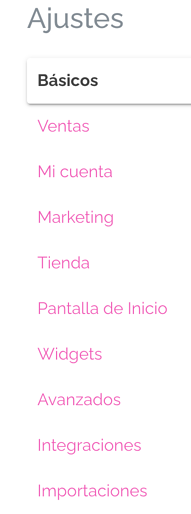
- Basic
You will be able to set up:
-
The final domain for your store, its name, the language and the time zone.
-
Notification and support email: if your users want to get in touch with you, you can give them an email where you will receive the inquiries they send when they click on Help from their Account.
⚠️Remember to click save every time you make changes.
- Sales
Here you will be able to:
-
Set up the currencies in which you will offer your content, being able to choose up to two (one primary and one secondary).
-
Set up your taxes.
-
Set default prices.
-
My account: Here you will have information about your account on Publica.la and you will be able to manage it.
-
Marketing:
In this section you will be able to:
-
Set up your SEO: it will help search engines like Google, Bing and Yahoo recommend your content to their users as the best solution to their problems.
-
Insert your tracking codes for Facebook Pixel and Google Analytics
-
Connect your store with the Facebook Conversions API
-
Store:
Here you will be able to:
-
Choose the primary and secondary colors of your store from the palette or by entering the hexadecimal code manually.
-
Add your logo and icon
-
Home screen: You can enable a custom home page that your users will see before entering the library. To do so, enable the button that is turned off by default. Fill in the required fields and, if you want, you can add HTML and CSS code for further customization.
-
Widgets: In this section you can insert HTML code to add different snippets in the main section of the store, for example you will be able to:
- Add a banner with your own images.
- Add a section of featured publications or plans.
- Add a video
-
Advanced:
From here you will be able to:
- Activate taxonomies
- Manage publication features such as private material and add-ons.
- Set the expiration time for downloads
- Add custom code
In our help center you will find the Customization section, where you will find articles that will be useful to customize your store even further.
-
Integrations: From here you will be able to:
- Generate API integration keys
- Enable reading permissions
- Set up webhooks and email notifications
- Set up LTI and SAML integrations.
-
Imports: In this section you will be able to load and update your publications, users and reading permissions for users in bulk.
We have reached the end of this general tour of your store! We hope you can make the most of these tools to boost your store to the maximum and start selling 🚀
Do not hesitate to contact us with your questions or comments through our chat or by email at [email protected]
The Publica.la support team